

TL;DR
Extending a song does not regenerate it. Everything before the point you choose stays exactly as it is; the AI listens to the last few bars and writes what comes next. On Suno AI Music that is four moves: pick a song from your library, drag the Continue At slider to the bar where the continuation should start, decide whether the new section keeps the original style or takes a new direction, and generate. One run costs 10 credits and hands you two full-length versions of the extended track, so you compare and keep the better one. In Suno's own app the same idea lives under a song's menu as Extend, with an "Extend from" timestamp and a separate Get Whole Song step to stitch the pieces back together.
If the join sounds stitched, the fix is almost always the same: move the continue point to the end of a phrase, not the middle of one, and keep the style description identical to the original.
In this guide
- What extend actually does
- Extend a song in the Suno app
- Extend a song with Suno AI Music, step by step
- Where the join goes wrong
- Custom mode: writing the next section
- How many times can you extend
- What it costs
- FAQ
What extend actually does
It helps to be precise about this, because most bad extensions come from a wrong mental model.
When you extend, the model is given the audio up to your chosen timestamp and asked to continue it. It is not asked to redo the intro, re-sing the first verse or "improve" anything. The original audio is the anchor: tempo, key, the singer's timbre, the instrumentation and the energy level at the cut point all come from what was already there. The new material is conditioned on the last stretch of sound before the cut, which is why where you cut matters more than what you type.
Two consequences follow:
- A clean cut gives a clean join. End of a chorus, a held note fading, a bar of instrumental before the next section — these hand the model an obvious place to pick up. Cutting mid-word or mid-riff asks it to finish a phrase it can only guess at.
- The style prompt is a suggestion, the audio is a fact. If the audio says "80 BPM lo-fi with a brushed snare", writing "fast punk" in the style box will produce a fight, not a change of direction. To change direction, give the song a transition first (a breakdown, a bar of silence, a drum fill) and extend from there.
Extend a song in the Suno app
If you are coming from Suno's own product, the feature is in the song's overflow menu. Open your Library, click the ⋯ menu on a clip, and choose Extend. Suno asks for an Extend from timestamp, then generates a new clip that begins at that point. Because the result is a separate clip, you finish with Get Whole Song on the last extension, which walks back through the chain and renders the pieces as one track. Guides that cover the app in depth agree on the same habits: extend from the very end of the clip when you simply want more, nudge the extend point a second earlier or later if the transition stumbles, keep the style prompt identical for a seamless continuation, and stop after two or three chained extensions before quality drifts.
Those habits carry over one-to-one. The mechanics below are for Suno AI Music's extender, which works on the same principle with two differences worth knowing before you start: the source has to be a song in your own library here (there is no upload of outside audio), and the output is already the whole track — there is no stitching step.
Extend a song with Suno AI Music, step by step
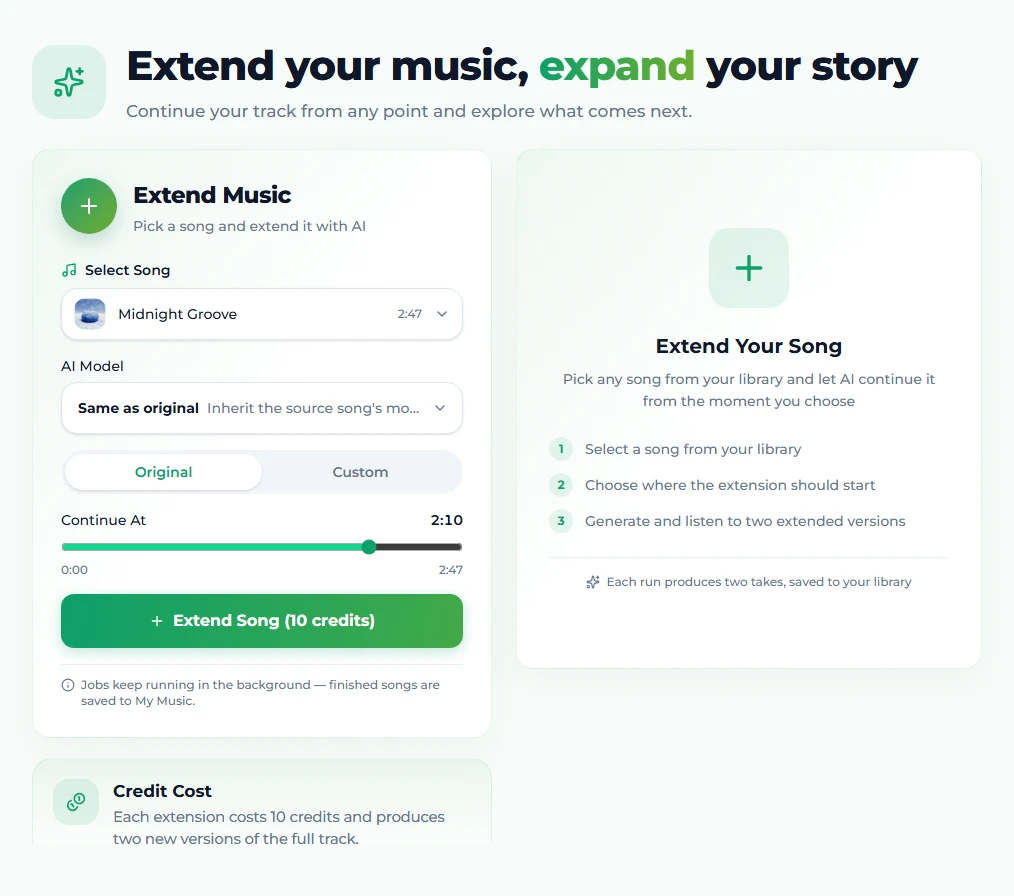
Step 1: Pick the song from your library
Open Extend Song and use Choose a song to extend. The picker lists every completed track in your library — songs you generated on the create page, covers, replaced sections and earlier extensions all qualify. Type to search if the list is long. There is nothing to upload: the source is already on the server, which is what makes the join seamless rather than a cross-fade between two files.
If the library is empty, generate something first. A new account gets 16 free credits, and one generation costs 10, so the very first extension is covered by the welcome credits with 6 left over for a lyrics draft.
Step 2: Choose the Continue At point
As soon as a song is selected, the Continue At slider appears, running from 0:00 to the end of the track, with the exact timestamp shown on the right. Drag it to the bar where the continuation should begin. Everything before that mark is kept byte-for-byte; everything after it is discarded and rewritten.
Where to put it:
- You just want the song longer. Park the slider at the very end. The model continues from the last thing it hears, which is the safest join there is.
- The ending is weak and you want a better one. Back up to the last moment you still like — usually the end of the final chorus — and let the extension write a new outro.
- You want a new section in the middle. Scrub to the end of the section before it. Extending from the last beat of a chorus gives you a natural place for a bridge or a second verse.
Play the song in the player bar while you decide; the slider is easier to place when you can hear the phrase you are cutting at.
Step 3: Keep the style, or steer the new section
Two controls sit above the slider.
AI model. The default is Same as original, and for a continuation that is the right choice: the new section is written by the model that wrote the old one, so the voice and production match. You can switch to another v6 model — v6, v6 Wild or v6 Mini — when you deliberately want a different sound, but expect the join to be more audible when the two halves come from different models. On a free account, a song made on a PRO model is extended on v6 Mini; the models marked PRO unlock with any paid plan.
Original / Custom. Original keeps the source song's title, style and lyrical direction — the continuation simply carries on. Custom opens three fields: a title for the extended version, a style description, and lyrics for the extended section. Use Custom when the song should go somewhere new, and read the section on writing those lyrics below before you fill it in.
Step 4: Generate, then compare the two takes
Click Extend Song (10 credits). The job runs in Your Tasks under the form, usually finishing in one to three minutes; you can leave the page and it keeps going. When it lands you get two takes, each a complete track that contains the untouched original plus a different continuation. Listen to both from a few seconds before the cut point — that is where any seam would be — and keep the one that flows. Both versions are saved to My Music as songs of their own, which means either can be extended again, covered, or have a section replaced later.
Where the join goes wrong
Every stitched-sounding extension we have listened to fell into one of these.
The cut is mid-phrase. The model has to complete a lyric it cannot know, so it invents a syllable or repeats a word. Move the slider to the end of the line. A second or two either way is often the whole difference.
The style box contradicts the audio. "Slow acoustic" typed under a fast electronic track produces a continuation that tries to be both. In Original mode this cannot happen; in Custom mode, copy the original style description and change one thing at a time.
The cut is on a busy moment. A dense vocal run, a drum fill, a big crash — the model picks up the energy but not the exact notes, and the mismatch is obvious. Cut on a sustained note or a bar of instrumental instead.
Too many extensions in a row. Each pass inherits from the pass before it, so small drifts in tone accumulate. Three passes on one song is a sensible ceiling; if you need more length, extend from an earlier, cleaner version rather than from the third extension.
The wrong take was kept. Two takes exist precisely because the join is probabilistic. Always audition both around the cut before deciding.
If the seam is in the middle of an otherwise good result — a single bad bar rather than a bad direction — Replace Section is the better tool: it rewrites a marked stretch and keeps everything on either side.
Custom mode: writing the next section
When you switch to Custom, the lyrics field is for the extended section only, not the whole song. The original lyrics are already sung in the audio you kept. Writing them again produces a song that repeats its first verse.
A few habits that make the new section fit:
- Label the section. Start the lyrics with a tag such as
[Bridge],[Verse 2],[Chorus]or[Outro]. The model treats these as structure, and a[Bridge]after a chorus reads as a bridge rather than as more chorus. - Match the line length. If the original sings eight-syllable lines, eight-syllable lines continue naturally. A sudden run of long lines forces a rhythm change.
- Rhyme with what came before when you can. The last rhyme sound the listener heard is still in their ear. Picking it up in the first new line is the cheapest way to make the continuation feel planned.
- Use
[Instrumental]when you want breathing room. A tagged instrumental section before the new vocal gives the model a bar to settle into the change, and gives you a cleaner place to cut again later. - Keep the style line close to the original. Copy it, then add the one word that describes the change — "building", "stripped back", "double-time" — rather than rewriting it.
For the style description itself, the same principles as first-time generation apply; the create page is a good place to test a style line on a fresh song before committing it to an extension.
How many times can you extend
As many as you like, in the sense that every extended track is a normal song in your library and can be the source for the next run. In practice, treat two or three chained passes as the point where you should listen critically before going further. The model conditions on audio that was itself generated, and the smallest drifts — a slightly brighter mix, a slightly different vocal placement — compound.
The workaround is to branch instead of chaining. Extend the original twice with two different continue points, keep the better result, and extend from that rather than from a result of a result. Because both takes of every run are kept, you always have the earlier, cleaner versions to go back to.
What it costs
One extension run is 10 credits, the same price as generating a new song, drawn from the same balance. That buys both takes; there is no per-take or per-download surcharge once the job is done. Free accounts start with 16 credits and extend on Suno v6 Mini; the paid plans add the PRO models, a monthly credit allowance, high-quality downloads and the commercial licence that covers the extended versions as well as the originals. Extended tracks carry the same rights as every other song you make on the site — there is nothing extra to clear because a track was lengthened.
FAQ
Does the extended part sound like the original?
By default, yes. In Original mode with the model set to Same as original, the continuation inherits the voice, key, tempo and arrangement of the source, because it is conditioned directly on that audio. The join is most convincing when the continue point sits at the end of a musical phrase.
Can I extend a song I did not generate on Suno AI Music?
Not directly. The extender reads from your library, and the library holds songs made on the site — generated, covered, replaced or previously extended. There is no upload of outside audio. If the aim is to build on a melody you have elsewhere, generate a version of it on the create page first and extend that.
Do I need to stitch the extension onto the original afterwards?
No. Each take you get back is already the full track: the original up to the continue point, followed by the new section. That is one of the differences from Suno's app, where an extension is a separate clip and Get Whole Song assembles the chain.
How long does an extension take?
Usually one to three minutes. The job sits in Your Tasks on the extend page and keeps running if you navigate away, so there is no need to wait on the page.
What if neither take is right?
Change one variable and run again. Most often the variable is the continue point; moving it a bar earlier or later changes what the model hears last. If the direction is wrong rather than the join, switch to Custom and steer the style and lyrics explicitly. If only a short stretch is wrong, replace that section instead of extending again.
Can I change the genre in the extension?
You can, through Custom mode, but do it in two moves rather than one. First extend with a transition — a breakdown, a bar of [Instrumental], a drum fill — then extend again from the end of that transition with the new style. Asking the model to jump genres at a cut point produces a fight between the audio it hears and the style it is told; give it a bridge to cross instead.
Final take
Extending is the cheapest way to turn a promising two-minute generation into a finished song, and the whole craft of it is in one decision: where you cut. Put the Continue At slider at the end of a phrase, keep Same as original and Original mode for a straight continuation, switch to Custom only when the song should change direction, and always audition both takes across the join. Do that and the seam disappears.
Ready to try it on one of your own tracks? Open Extend Song, pick the song, and drag the slider to the last bar you love.