TL;DR
A good ringtone is a 20–30 second clip that starts on something recognisable, has a half-second fade at each end so it does not click, and is loud enough to hear from another room. The free ringtone maker does the cutting: drop in an MP3, WAV, M4A or the audio inside an MP4, drag the Start and End sliders around the part you want, press Preview to hear exactly what you will get, and download an MP3 or a WAV. The file is decoded, trimmed and encoded inside your browser — nothing is uploaded. Selections are capped at 40 seconds, the length iPhones cut ringtones off at. Android takes the MP3 as it is; an iPhone needs it turned into an .m4r through GarageBand or iTunes, covered below.
In this guide
- What makes a ringtone work
- Step by step with the ringtone maker
- Choosing the right 30 seconds
- MP3 or WAV
- Putting it on your phone
- Making a ringtone nobody else has
- Troubleshooting
- FAQ
What makes a ringtone work
A ringtone has a different job from a song. It has to be recognised in the first second, cut through background noise, and loop without an ugly seam. That leads to four practical rules:
- Start on the hook, not the intro. Nobody waits eight seconds for a drum fill to build. Start on the chorus, the riff, or the vocal line people know.
- Keep it between 20 and 30 seconds. Most calls are answered or declined well before that, and shorter clips loop more naturally. The hard ceiling is 40 seconds.
- Fade the edges. A cut in the middle of a waveform produces an audible click, and a ringtone repeats that click every loop. A 0.5-second fade in and out removes it.
- Pick a busy, bright section. Quiet piano intros and bass-heavy drops disappear through a phone speaker. Choose a section with midrange — vocals, guitar, synth lead.
Step by step with the ringtone maker
The ringtone maker is free, works on desktop and mobile browsers, and needs no account. Here is a real run with a lo-fi track we generated ourselves — 3 minutes 2 seconds long.
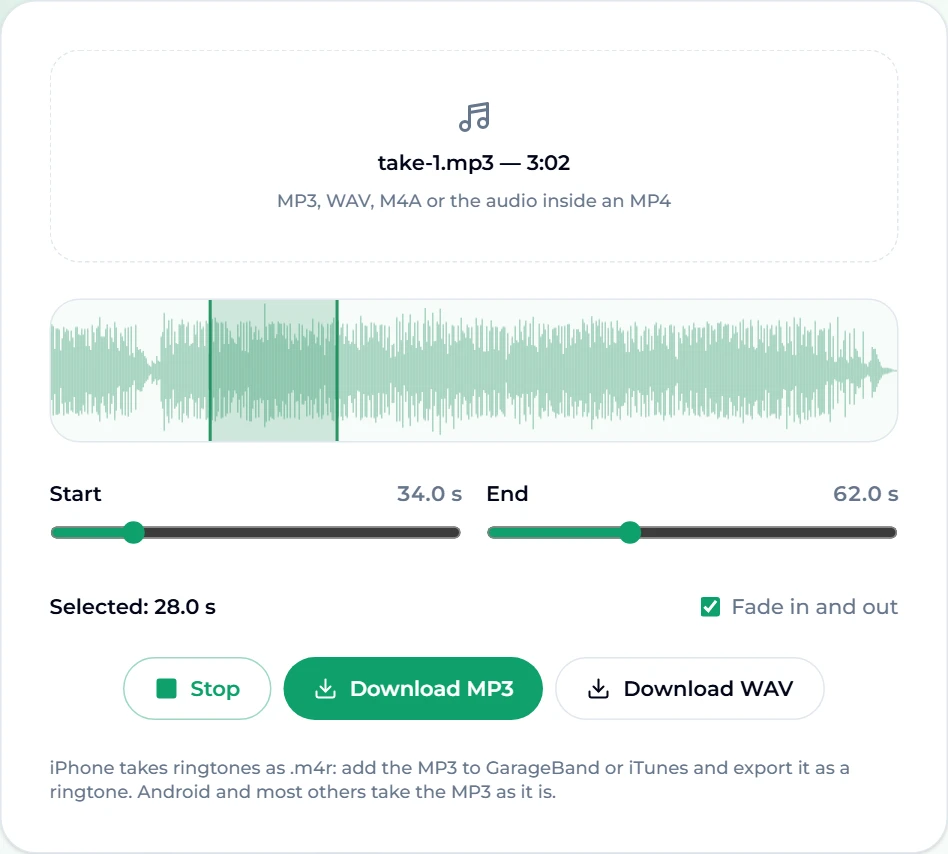
- Choose the song. Press Choose a song and pick the file. It accepts MP3, WAV, M4A and the audio inside an MP4 (or WebM) video. Once decoded, the box shows the file name and length —
take-1.mp3 — 3:02in our case — and a waveform of the whole track appears. - Look at the waveform. Loud passages are tall, quiet ones are thin. Our track has a quiet dip around the 0:30 mark, then the full beat comes back in — a natural starting point.
- Set Start and End. Drag the sliders; each moves in tenths of a second, and the chosen stretch is shaded on the waveform with a line at each edge. We set Start 34.0 s and End 62.0 s, and the readout confirmed Selected: 28.0 s. When a file loads, the tool pre-selects the first 30 seconds so you always have something to start from.
- Leave Fade in and out ticked. It applies a half-second fade at each end of the clip.
- Press Preview. It plays the exact selection, fades included — the same audio the download will contain — and the button turns into Stop.
- Download. Press Download MP3 or Download WAV. The file is saved as the original name plus
-ringtone: our clip came out astake-1-ringtone.mp3(about 450 KB) andtake-1-ringtone.wav(about 5.4 MB).
What the 40-second limit looks like
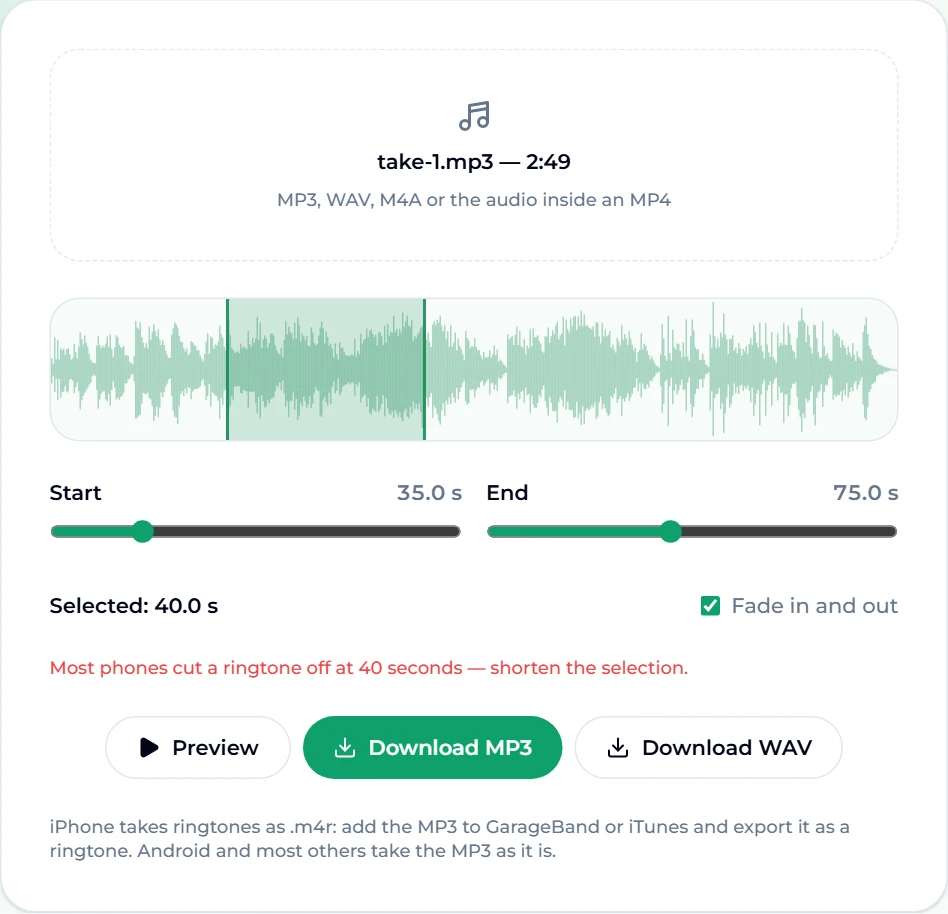
Try to select more than 40 seconds and the tool will not let you: drag End further out and Start follows it, keeping the clip at exactly 40 seconds. On a piano track we loaded, pulling End to 75.0 s moved Start up to 35.0 s and a red note appeared — Most phones cut a ringtone off at 40 seconds — shorten the selection. At 40 seconds the clip is at the ceiling; bring it down to 30 for the safest result.
Choosing the right 30 seconds
The waveform is a better guide than scrubbing with your ears:
- Find the first chorus. In most pop songs it arrives between 0:40 and 1:10, and it is usually the first place the waveform gets consistently taller.
- Start a beat early. Begin half a second before the vocal or riff enters, so the fade-in finishes as the hook lands.
- End on a phrase, not mid-word. Stop just after a line finishes. The fade-out then tails off naturally instead of chopping a syllable.
- Test on a phone speaker. Laptop speakers flatter bass. Send yourself the MP3 and play it on the phone before you commit.
- For a text or notification tone, go tiny. Two to five seconds: a single guitar stab, a vocal "hey", a synth chord. Same tool, just a much shorter selection.
MP3 or WAV
| MP3 | WAV | |
|---|---|---|
| Size for 28 s | about 450 KB | about 5.4 MB |
| Quality | Compressed, but indistinguishable on a phone speaker | Uncompressed |
| Android | Works directly | Works on most phones |
| iPhone route | Import into GarageBand or iTunes | Import into GarageBand or iTunes |
| Pick it when | You just want a ringtone | You plan to edit the clip further |
For almost everyone, MP3 is the right choice. Pick WAV only if you are going to take the clip into another editor first — adjusting it in an audio equalizer, say — and want to avoid compressing it twice.
Putting it on your phone
Android
Android phones accept an MP3 ringtone directly. Copy the file to the phone (download it on the phone itself, or transfer it by cable or cloud storage), then open your sound settings and choose the ringtone option. Most phones let you add a new ringtone from your files there; some list anything saved in the phone's Ringtones folder automatically. Menu names differ between manufacturers, but the path always starts in Settings → Sound.
iPhone
iOS only installs ringtones in Apple's .m4r format, so the MP3 needs one extra step, which the tool itself points out:
- On the iPhone: import the MP3 into GarageBand, then share the project as a ringtone. GarageBand converts it and offers to set it as your ringtone straight away.
- On a computer: add the MP3 to iTunes (or the Music app on a Mac), convert it to an AAC version, rename the resulting file's extension from
.m4ato.m4r, and sync it to the phone.
Either way, keep the clip at 40 seconds or under — longer files are refused or cut short.
Tip: give the clip a proper title before converting it. The phone lists ringtones by name, and "take-1-ringtone" is hard to find three months later. The free MP3 tag editor sets the title and artist in the file itself.
Making a ringtone nobody else has
Cutting a hit song gives you the same ringtone as everybody else on the train. Two ways around that:
- Make the song first. Describe what you want in the AI music generator — "bright ukulele pop with whistling, happy, 110 BPM" — and you get two full songs with vocals from one generation. New accounts start with free credits, and the free tier runs on v6 Mini. Download your favourite, then cut the hook in the ringtone maker. A song you generated is yours to use as a ringtone.
- Make a jingle. The jingle maker is built for short, catchy pieces — which is exactly the shape of a ringtone.
Other tools that pair well with it:
- Want the instrumental only? Run the song through the vocal remover first, then cut the backing track.
- Want the dreamy version? Make a slowed + reverb edit and cut that.
Troubleshooting
- "That file could not be decoded." The browser could not read the format. Convert it to MP3, WAV or M4A and try again. Protected files from streaming apps cannot be decoded — they are not ordinary audio files.
- There is a click at the start or end. Make sure Fade in and out is ticked, and start just before a beat rather than on it.
- It is too quiet on the phone. Choose a louder, more midrange-heavy section, or lift the mids and highs with the audio equalizer before cutting.
- Preview plays nothing on a phone. Check the phone is not on silent; mobile browsers route web audio through the ringer volume on some devices.
- The iPhone will not accept the file. It must be
.m4r, 40 seconds or less, and added through GarageBand, iTunes or Finder — not simply saved to Files.
FAQ
How long should a ringtone be?
Twenty to thirty seconds is the sweet spot. iPhones cut ringtones at 40 seconds, and most Android phones loop whatever you give them. Notification and text tones work best under five seconds.
Is the ringtone maker free?
Yes. It is free, needs no account, and has no watermark or daily limit — the work happens on your own device.
Is my song uploaded anywhere?
No. The file is decoded, trimmed and re-encoded in your browser with the Web Audio API and a JavaScript MP3 encoder. It never leaves your device.
Can I make a ringtone from a video?
Yes. The picker accepts MP4 and WebM files and uses their audio track, so you can cut a ringtone straight from a clip you recorded.
Does it work on an iPhone?
The cutting does — the page runs in Safari like any other. Installing needs Apple's .m4r format, so download the MP3 and import it into GarageBand or iTunes to finish the job.
Can I use any song as my ringtone?
For personal use on your own phone, cutting a song you own is common practice. Sharing or selling a ringtone made from someone else's recording is a different matter — the recording still belongs to its rights holders. A song you generated yourself avoids the question entirely.
Final take
Making a ringtone is a two-minute job once you know what to listen for: start on the hook, keep it around 30 seconds, fade the edges, and test it on the phone. The ringtone maker handles the cutting, the fades and the export without uploading anything. And if you would rather your phone rang with something nobody else has, generate the song first in the AI music generator, then cut its best 30 seconds.