

TL;DR
Audacity has two vocal-removal routes and they are not remotely equal. The built-in Vocal Reduction and Isolation effect is the old phase-cancellation trick: quick, free, and it only works on a minority of songs — the ones with a dry, dead-centre vocal — and it takes the bass and kick with it. The OpenVINO AI Effects plugin adds real AI Music Separation (2-stem or 4-stem) to Audacity for free on Windows and Linux, and it is the method to use if you are going to use Audacity at all. If the song is one you generated yourself, the shortest path is neither: Suno AI Music's vocal remover separates any song in your library into a clean instrumental and an isolated vocal in the browser, 10 credits, no install.
In this guide
- Which method to use
- Method 1: Vocal Reduction and Isolation
- Method 2: OpenVINO AI Music Separation
- Exporting the instrumental
- Why the two methods sound so different
- When to skip Audacity
- FAQ
Which method to use
| Vocal Reduction and Isolation | OpenVINO Music Separation | Online AI separator | |
|---|---|---|---|
| How it works | Phase cancellation of centre-panned audio | Neural stem separation | Neural stem separation |
| Install | Built in | Free plugin from MuseHub | None |
| Platforms | All | Windows, Linux | Any browser |
| Works on | Songs with a dry, mono, centre vocal | Almost any mix | Almost any mix |
| Keeps the bass and kick | Often not | Yes | Yes |
| Gives you the acapella | No (only "isolation", roughly) | Yes | Yes |
| Time | Seconds | 1–3 minutes | 1–3 minutes |
If you are on a Mac, the plugin is not an option and the built-in effect is a coin toss; that is the case where an online separator earns its place.
Method 1: Vocal Reduction and Isolation
This is the effect Audacity has shipped for years. It works by inverting one channel and summing with the other, so anything identical in both channels — typically the lead vocal, panned dead centre — cancels. It is worth trying once on a song because it takes ten seconds, and worth abandoning the moment it produces a hollow, bass-less result, because no setting will fix that.
Step 1: Import the song
File > Import > Audio and choose the file. Check that the track shows two channels; the effect needs stereo, and a mono file has nothing to cancel.
Step 2: Select the whole track
Click in the track area and press Ctrl+A (Cmd+A). The effect only acts on the selection.
Step 3: Open the effect
Effect > Vocal Reduction and Isolation. In the Action menu choose Remove Vocals. Leave Strength at 1.0 and the frequency bounds at their defaults for the first pass.
Step 4: Preview, then apply
Use Preview before Apply. Listen for two things: whether the voice actually drops, and whether the low end is still there. If the bass and kick disappeared with the voice, the song's rhythm section sits in the centre too, and this method cannot separate them.
Step 5: Adjust if it is close
If the voice is mostly gone but a ghost remains, try Remove Center Classic under Action, or raise the Low Cut for Vocals so the effect leaves more of the bass alone. Small changes; if two adjustments do not fix it, stop here and use method 2.
What the built-in effect cannot give you is the vocal on its own — its Isolate Vocals action returns the centre channel, which is the voice plus everything else that was centred. For a usable acapella you need the AI route.
Method 2: OpenVINO AI Music Separation
Audacity's maker publishes a free OpenVINO AI Effects plugin that adds neural tools — music separation, noise suppression, transcription — directly inside Audacity. The separation is the same class of model an online separator runs. It is currently offered for Windows and Linux.
Step 1: Install the plugin
Update Audacity to a current version, then install OpenVINO AI Tools from MuseHub (the same place Audacity itself is distributed). Restart Audacity. The first run of a model downloads it, so expect a wait the first time.
Step 2: Import and select
File > Import > Audio, then Ctrl+A to select the whole track.
Step 3: Run Music Separation
Effect > OpenVINO AI Effects > Music Separation. Choose a mode:
- 2-stem — vocals + instrumental. This is the karaoke setting and the one most people want.
- 4-stem — vocals, drums, bass, other. Use it when you plan to remix rather than just remove the voice.
Click Apply. Processing takes one to three minutes depending on the song's length and your hardware.
Step 4: Work with the new tracks
When it finishes, Audacity adds a separate track per stem under the original. For an instrumental, mute or delete the vocal track (and the original). For an acapella, keep only the vocal track. Solo each stem once and listen through the whole song before exporting; a dense chorus is where any bleed will be.
Exporting the instrumental
With only the stems you want audible, File > Export Audio. Choose WAV for anything you will edit further, MP3 or similar for a karaoke file you will play back. Give the export a name that says what it is (song-instrumental.wav) — a folder of identical-looking files is the classic way to lose the good one.
Why the two methods sound so different
Phase cancellation cannot tell a voice from a kick drum. It can only tell centre from sides, so it removes everything panned to the centre — which in most mixes includes the lead vocal, the kick, the snare and the bass — and it leaves behind whatever part of the vocal was not identical in both channels: the reverb tail, the stereo doubler, the delay. That is the hollow, bass-light, ghostly sound the built-in effect is known for.
AI separation was trained on songs whose individual stems were known, and it learned what a voice looks like spectrally — harmonics, formants, the scatter of consonants — regardless of where it is panned. It reconstructs a vocal signal and an everything-else signal instead of subtracting one channel from the other. The bass stays because the model knows a bass is not a voice, and the acapella is a real by-product rather than an accident.
When to skip Audacity
Audacity makes sense when you already have the audio file on disk, you want to edit further in a DAW-like environment, or you are on Windows/Linux and happy to install the plugin. It stops making sense in three common situations:
-
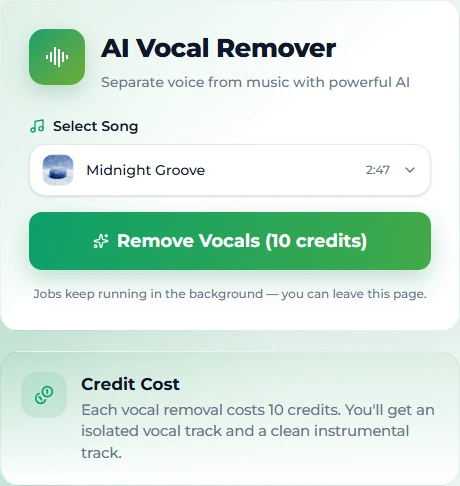
You are on a Mac and the built-in effect failed. The AI plugin is not available there; the fastest fix is an online separator. Suno AI Music's vocal remover takes an uploaded MP3, WAV or M4A up to 10 MB.
-
The song is one you generated. On Suno AI Music every song you make is already on the server; separation is one click, 10 credits, returns both the instrumental and the acapella in one to three minutes, and both files stay in your library next to the original. No import, no plugin, no export dialog. The online vocal removal guide walks it.
-
You want a different arrangement, not a missing voice. If the aim is "the same song, sounding different", removing the vocal and rebuilding is the long way round; covering the song in a new style re-performs the arrangement around the same melody in one run.
For a song you generated, there is a further point: the instrumental you pull from it inherits the song's licence — copyright-free, with commercial use on the paid plans — which is not something Audacity can give you for a file from somewhere else.
FAQ
Does Audacity's built-in vocal remover work?
On some songs — those with a dry lead vocal panned dead centre and a rhythm section that is not. On most modern mixes it removes the bass and kick with the voice and leaves a reverb ghost. Try it once; if it fails, use the AI plugin or an online separator.
Is the OpenVINO plugin free?
Yes. It is published for Audacity and installed from MuseHub; the models download on first use.
Does the OpenVINO plugin work on Mac?
At the time of writing it is offered for Windows and Linux. Mac users have the built-in effect or an online AI separator.
Can I get the vocals on their own in Audacity?
With the AI plugin's 2-stem or 4-stem separation, yes — keep the vocal track and export it. The built-in effect's "isolate" action returns the centre channel, which is usually voice plus bass and drums.
How long does AI separation take in Audacity?
One to three minutes for a typical song, depending on length and hardware, plus a one-time model download.
What if my song was made with AI?
If it was made on Suno AI Music, skip the download entirely: the vocal remover works on your library directly and the stems stay licensed. Generate a song on the create page, separate it, and both files are in My Music.
Final take
Try the built-in effect once because it is instant; expect it to fail on most songs because it cannot tell a voice from a kick. For real results in Audacity, install the OpenVINO plugin and run 2-stem Music Separation. And if the song is one of yours, do it in the browser instead — separate it here, no install.