
TL;DR
A frequency generator plays one steady tone at the exact pitch you type. Open the free frequency generator, enter a number between 20 Hz and 20,000 Hz, pick a waveform — sine, square, sawtooth or triangle — and press Play. It starts at 440 Hz and 20% volume on purpose; turn up slowly. Use it to find where your speakers or headphones stop producing bass, to hunt down the booming note in a room, or to tune by ear against a reference pitch (the nearest note name is shown under the field). To see what you are hearing, open the audio spectrum analyzer on your microphone: when we fed it a 1 kHz tone, its readout said "Loudest around 1.0k Hz". For broadband checks, the noise generator plays white, pink or brown noise. All three tools run in the browser, free, with nothing uploaded or recorded.
In this guide
- What a frequency generator is for
- Safety first
- Step by step
- Choosing a waveform
- Seeing the tone on a spectrum analyzer
- Five practical tests
- When to use noise instead of a tone
- Troubleshooting
- FAQ
- Final take
What a frequency generator is for
Music is a mix of thousands of frequencies at once, which makes it a poor tool for diagnosing anything. A single tone isolates one variable. If your speaker rattles at 80 Hz, a song will rattle now and then; an 80 Hz tone will rattle every time, and you will know exactly which frequency is the problem.
Common jobs for a tone generator:
- Speaker and headphone checks — how low a speaker really goes, whether a driver buzzes, whether a subwoofer crossover is set sensibly.
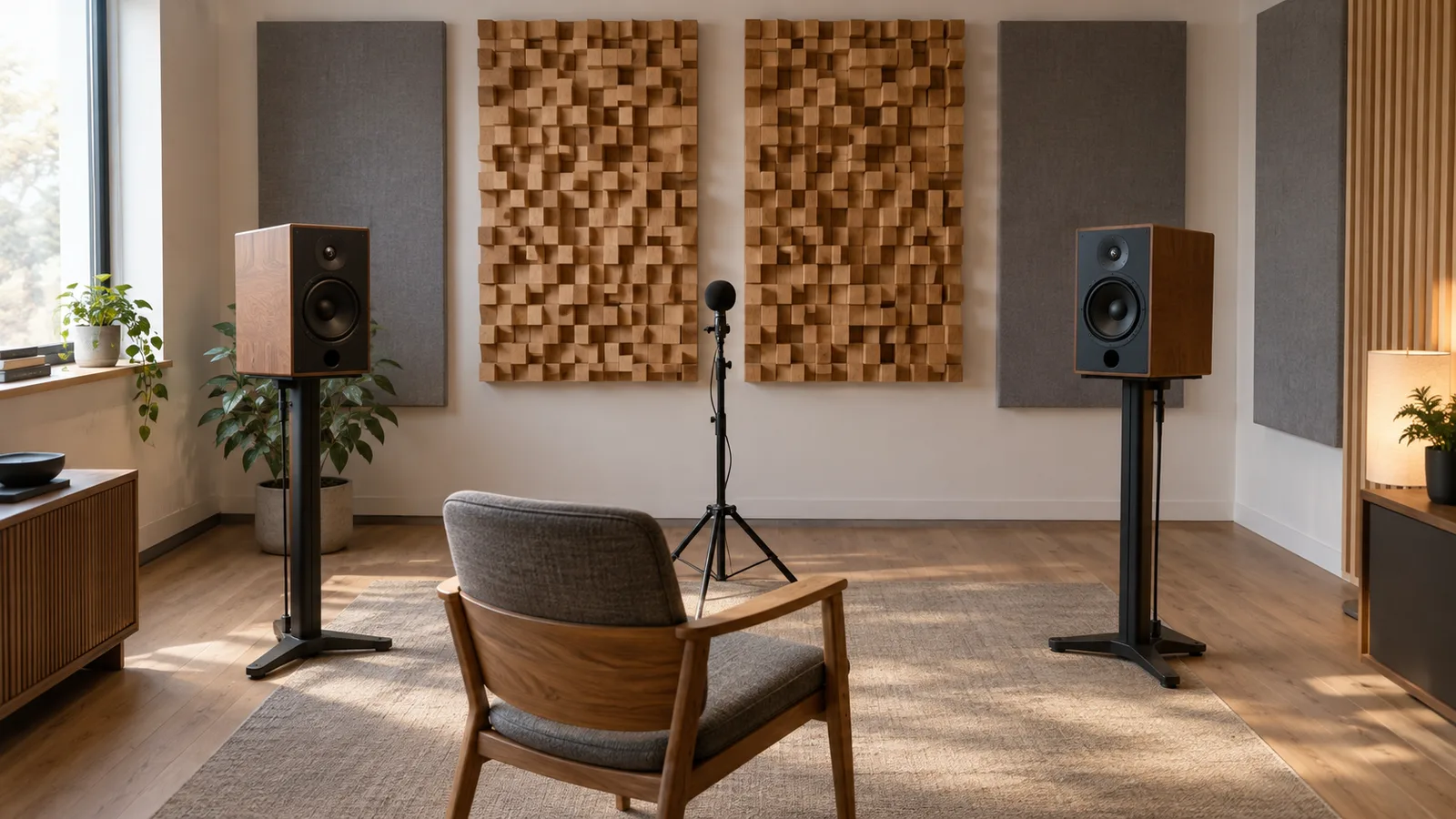
- Room acoustics — every room has a few bass notes that boom and others that vanish, depending on its dimensions. A slow sweep finds them.
- Tuning by ear — hold a reference pitch such as A4 = 440 Hz and match an instrument or voice to it.
- Learning — hearing what "100 Hz" or "4 kHz" actually sounds like makes equalizer settings far less mysterious.
Safety first
Test tones are deceptively loud and very tiring to listen to.
- Start quiet. The generator opens at 20% volume and its slider stops well short of full scale, deliberately. Turn your system volume down before you press Play, then bring it up.
- Square and sawtooth waves are much louder than a sine at the same slider setting, because they carry many harmonics.
- Never hold a loud high tone, especially on headphones. Short bursts at a moderate level are all any of the tests below need.
- Protect small speakers from deep bass. Very low frequencies at high volume make woofers travel far; if you hear flapping or clicking, turn down immediately.
The tools here are for audio checks and curiosity. They are not medical hearing tests; if you are worried about your hearing, see an audiologist.
Step by step
- Open the frequency generator.
- Type the frequency into the Frequency field, or drag the slider under it. Anything from 20 to 20,000 Hz. The line underneath shows the nearest note: 440 Hz reads A4; our 1,000 Hz test tone reads B5.
- Choose a Waveform. Start with Sine, the purest tone.
- Set the Volume low and press Play.
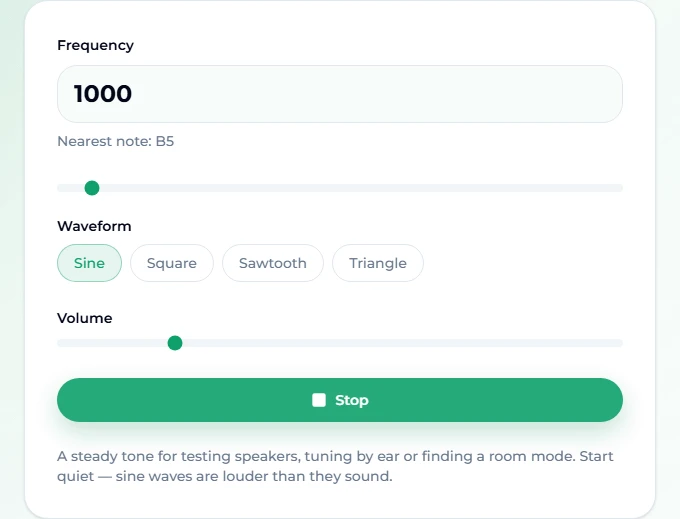
- Change the frequency or volume while it plays. Changes are ramped rather than jumped, so you do not get a click through the speakers every time you move the slider — which matters when a click is exactly the kind of noise you are testing for.
- Press Stop. The tone fades out over a few milliseconds, again to avoid a click.
Choosing a waveform
| Waveform | Sounds like | Use it for |
|---|---|---|
| Sine | A pure, smooth whistle or hum | Almost every test: speakers, rooms, tuning |
| Triangle | Slightly hollow, flute-like | A softer alternative to square for tuning by ear |
| Square | Buzzy, like an old video game | Hearing distortion and rattles quickly; loud |
| Sawtooth | Bright and brassy | Demonstrating harmonics; the harshest option |
A sine wave has energy at one frequency only, so any buzz or extra tone you hear is coming from your equipment or room, not from the signal. The other three waveforms add harmonics above the fundamental — useful for learning, confusing for diagnosis.
Seeing the tone on a spectrum analyzer
Ears are easy to fool; a meter is not. The audio spectrum analyzer draws the frequency content of a file or your microphone in real time, from 20 Hz to 20 kHz.
- Open the analyzer and choose Microphone, then Start. Allow microphone access when the browser asks. The microphone is never routed to your speakers, so it cannot feed back.
- Play a tone from the frequency generator on your speakers (in another tab or on another device).
- Watch the bars. A clean sine appears as one narrow spike; the thin line above each bar is its recent peak. Read the exact frequency from the text beside the button.
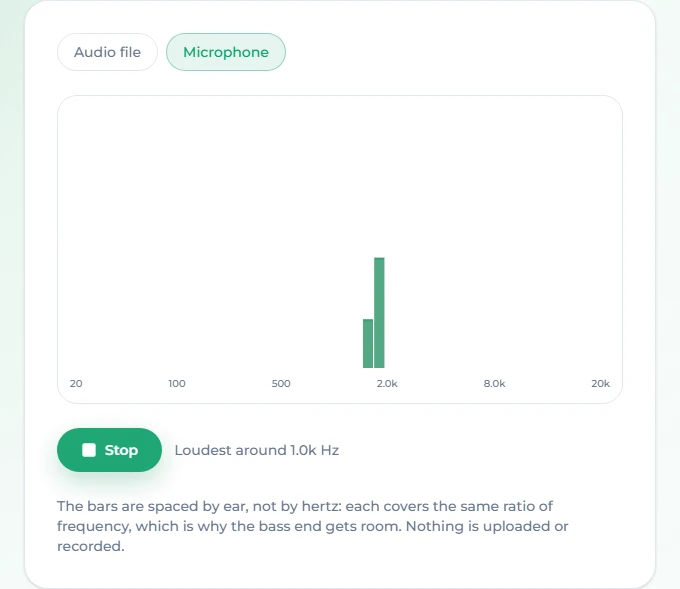
The bars are spaced logarithmically — each covers the same musical interval rather than the same number of hertz — so the bass end gets as much room as the treble. Rely on the "Loudest around …" readout for the precise number rather than eyeballing the axis.
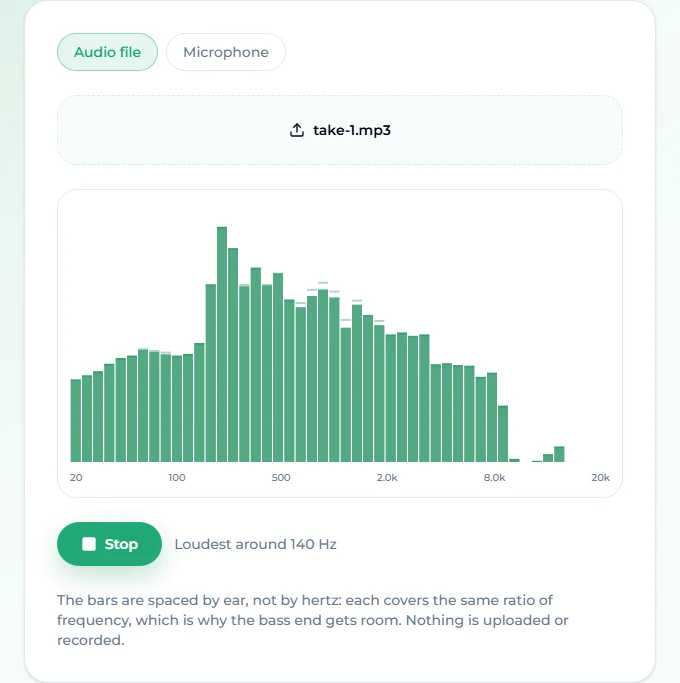
The analyzer also reads files. Loading a finished song shows you its overall balance: our test track, a tech-house song generated on Suno AI Music, peaked around 140 Hz — the kick drum and bass — and rolled off above 8 kHz.
Five practical tests
1. How low do my speakers go? Play a sine at 100 Hz at a moderate level, then step down: 80, 60, 50, 40, 30 Hz. The point where the tone becomes a faint flutter or disappears is your speaker's practical bass limit. Most laptop and phone speakers give up somewhere between 100 and 200 Hz; bookshelf speakers often reach 50–60 Hz.
2. Is something rattling? Step slowly through 40–200 Hz. A rattle, buzz or hiss that appears at one frequency points to a loose panel, grille, screw or object on a shelf. Square waves make rattles show up faster, at the cost of loudness.
3. Where does my room boom? Sit in your listening position and step through 30–150 Hz in 5 Hz steps. Some notes will swell dramatically, others almost vanish. Those are room modes, set by the room's dimensions. Moving your seat or speakers by 30–50 cm can shift them; the spectrum analyzer on the microphone, placed where your head would be, makes the peaks visible.
4. Reference pitch for tuning. Set 440 Hz (A4) or any note's frequency and match your instrument or voice to it by ear; when the two pitches agree, the slow "beating" between them stops. For a direct reading instead, use a tuner such as the online tuner.
5. How high can I hear? Out of curiosity, start at 8 kHz at a low level and step up. Many adults stop hearing somewhere in the teens of kilohertz, and cheap headphones may stop producing it before your ears stop hearing it. Treat the result as a fun fact, not a diagnosis.
When to use noise instead of a tone
A tone checks one frequency; noise checks all of them at once. The noise generator offers three colours:
- White has equal energy at every frequency and sounds like static. Very bright.
- Pink falls by 3 dB per octave, which sounds balanced to the ear — like steady rain. It is the classic signal for speaker and room checks.
- Brown falls twice as fast and sounds deep, like a waterfall or wind.
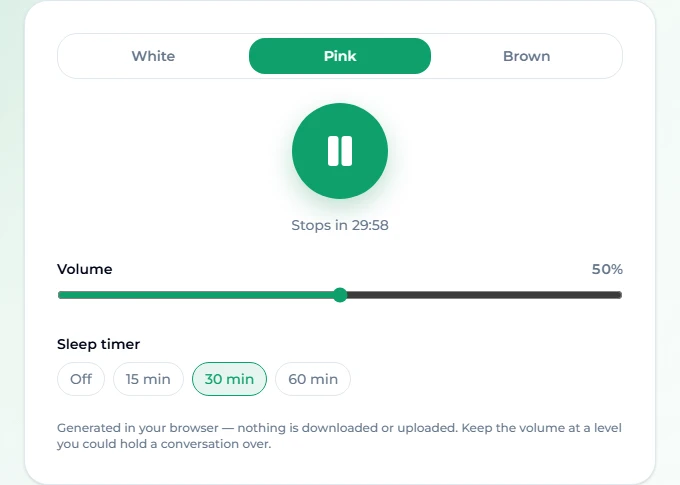
A quick speaker comparison: play pink noise through each speaker in turn at the same level with the analyzer on the microphone in the same spot. A dip or bump that follows the speaker is the speaker; one that changes when you move the microphone is the room.
The noise generator also has a sleep timer (15, 30 or 60 minutes) — it doubles as a focus and sleep tool, and is generated live in the browser, so it never loops or repeats.
Troubleshooting
I hear nothing at 20–40 Hz. That is normal on most speakers and many headphones; they physically cannot move enough air. Try 60 Hz to confirm the generator is working.
The spectrum analyzer shows an error about the microphone. The browser refused access, or there is no microphone. Allow it in the address-bar permissions and press Start again.
The analyzer peak is not exactly my tone. The readout rounds to the band the energy falls in. Room reflections and the microphone's own response also shift levels, especially at low frequencies.
The tone stops when my phone screen locks. Some phones pause web audio when the screen turns off. Keep the screen on with the brightness down.
The file will not load in the analyzer. Use MP3, WAV or M4A.
FAQ
What frequency range can the generator play?
20 Hz to 20 kHz, the usual limits of human hearing. What you actually hear depends on your speakers or headphones.
Is it free, and does it need an account?
All three tools — the frequency generator, the spectrum analyzer and the noise generator — are free, with no sign-up. They run in your browser.
Is my microphone recorded or uploaded?
No. The analyzer only measures the signal in real time. Nothing is recorded, stored or uploaded.
What is the best frequency for testing speakers?
Use a sine sweep from about 30 Hz to 200 Hz to check bass and rattles, then pink noise from the noise generator for an overall comparison.
Can I use it to tune an instrument?
Yes, by ear: set the note's frequency and match it; the nearest note name is shown under the field. For a needle reading, a tuner is faster.
Why does the square wave sound so much louder than the sine?
It contains a stack of harmonics above the main frequency, so it carries far more energy at the same setting. Turn down before switching waveforms.
Final take
A frequency generator turns vague complaints — "the bass sounds muddy", "something buzzes" — into numbers. Play a sine on the frequency generator, watch it land on the spectrum analyzer, and switch to pink noise on the noise generator when you want to check everything at once. Keep the volume modest, move in small steps, and write down the frequencies where things go wrong; that list is the start of every speaker placement, room treatment or EQ decision.