
TL;DR
An MP3 is a recording of sound; a MIDI file is a list of notes — which key, when, how long, how hard. Converting one into the other means having a model listen for the notes and write them down. The MP3 to MIDI converter on Suno AI Music does that entirely in your browser with Spotify's open-source Basic Pitch model: drop in a file up to 50 MB, wait a minute or two, and get a .mid file with every note it heard. Converting is free and needs no account; keeping the file costs 2 credits, or nothing on any paid plan. Clean, melodic audio — a solo piano, a sung line, an isolated stem — converts best. Dense full mixes come back as a starting point, not a finished score.
In this guide
- What MP3 to MIDI conversion actually does
- Which tool page to use
- Step by step
- Which recordings convert well
- Cleaning up the MIDI in a DAW
- Going the other way with MIDI to MP3
- FAQ
- Final take
What MP3 to MIDI conversion actually does
The two formats hold completely different things, and that difference explains every quirk of the conversion.
An MP3 is sampled sound: tens of thousands of numbers per second describing the air pressure a microphone picked up. It has no idea what a "note" is. A piano chord, a cough and a cymbal crash are all just waveform.
A MIDI file is a performance written as instructions: note 60 (middle C) starts at 1.25 seconds, lasts 0.4 seconds, velocity 88. It has no sound at all until a synth or sampler plays it — which is exactly why musicians want it. Once a melody is MIDI, you can change the instrument, fix a wrong note, quantize the timing, transpose it, or print it as sheet music.
Going from MP3 to MIDI is therefore transcription, not file conversion. Our converter runs Basic Pitch, a neural network Spotify released as open source, which looks at the audio's frequency content frame by frame and decides where notes begin, which pitch they are and when they end. It handles polyphony — several notes at once — and it catches pitch bends, which older "pitch tracker" converters could not.
Two consequences worth knowing before you start:
- The output is notes, not sounds. The MIDI does not know the original was a piano or a saxophone. You pick the instrument when you open it.
- Everything in the audio is a candidate note. Drums, reverb tails and vocal breaths can all turn into stray notes. The cleaner the input, the cleaner the MIDI.
Which tool page to use
There are three entry points and they share one engine, so the difference is only which files they accept:
| Page | Accepts | Use it when |
|---|---|---|
| MP3 to MIDI | MP3, WAV, M4A, FLAC, OGG, AAC | You have an audio file — the common case |
| Audio to MIDI converter | Same audio formats | Same tool, reached by its general name |
| MP4 to MIDI | The audio formats plus MP4, MOV, WEBM, MKV | Your melody is inside a video — a phone recording of a rehearsal, a screen capture |
All three cap files at 50 MB and run on your own device. Nothing is uploaded to a server — the page says so under the button, and it is the reason there is no queue and no sign-up wall in front of the conversion.
If you made the song on Suno AI Music, you do not even need the file: the From my songs tab converts a track from your library directly (that tab needs you signed in, because it reads your library).
Step by step
For this walkthrough we converted a 2 minute 49 second solo felt-piano piece — a track generated on our own AI music generator — which is close to the ideal input: one instrument, no drums, a clear melody over soft chords.
- Open the converter. Go to MP3 to MIDI. Leave the source on Upload a file.
- Drop in your audio. Drag the file onto the dashed box or click it to browse. The box shows the file name and size once it is accepted; anything over 50 MB is refused before any work starts.
- Press Convert to MIDI. The progress bar moves through two phases: Reading the audio… (decoding the file to 22.05 kHz mono, which is what the model expects) and Listening for notes… (the model itself).
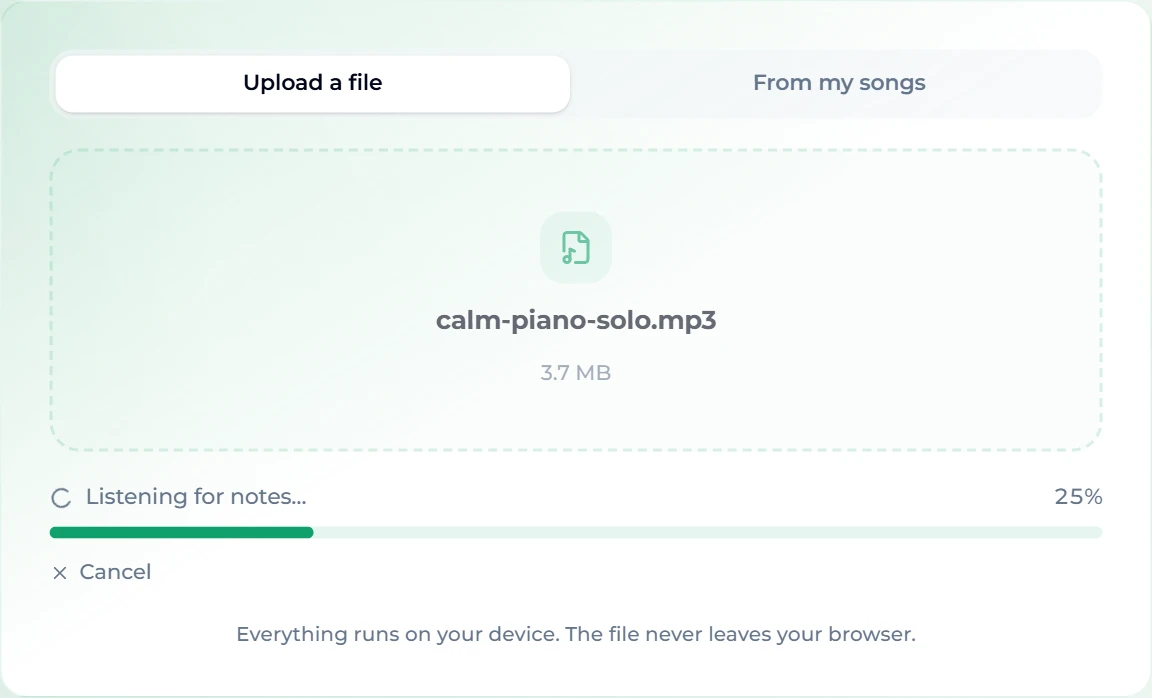
- Wait for the result. Our 2:49 piano track took about a minute and a half on a laptop. The work happens on your own processor, so a faster machine finishes sooner, and a long track takes proportionally longer. You can cancel at any time.
- Read the summary. When it finishes, the card tells you how many notes it found and across how much audio. Our piano piece came back with 3,523 notes across 2:49 — roughly 21 notes a second, which is about right for arpeggiated chords with a melody on top.
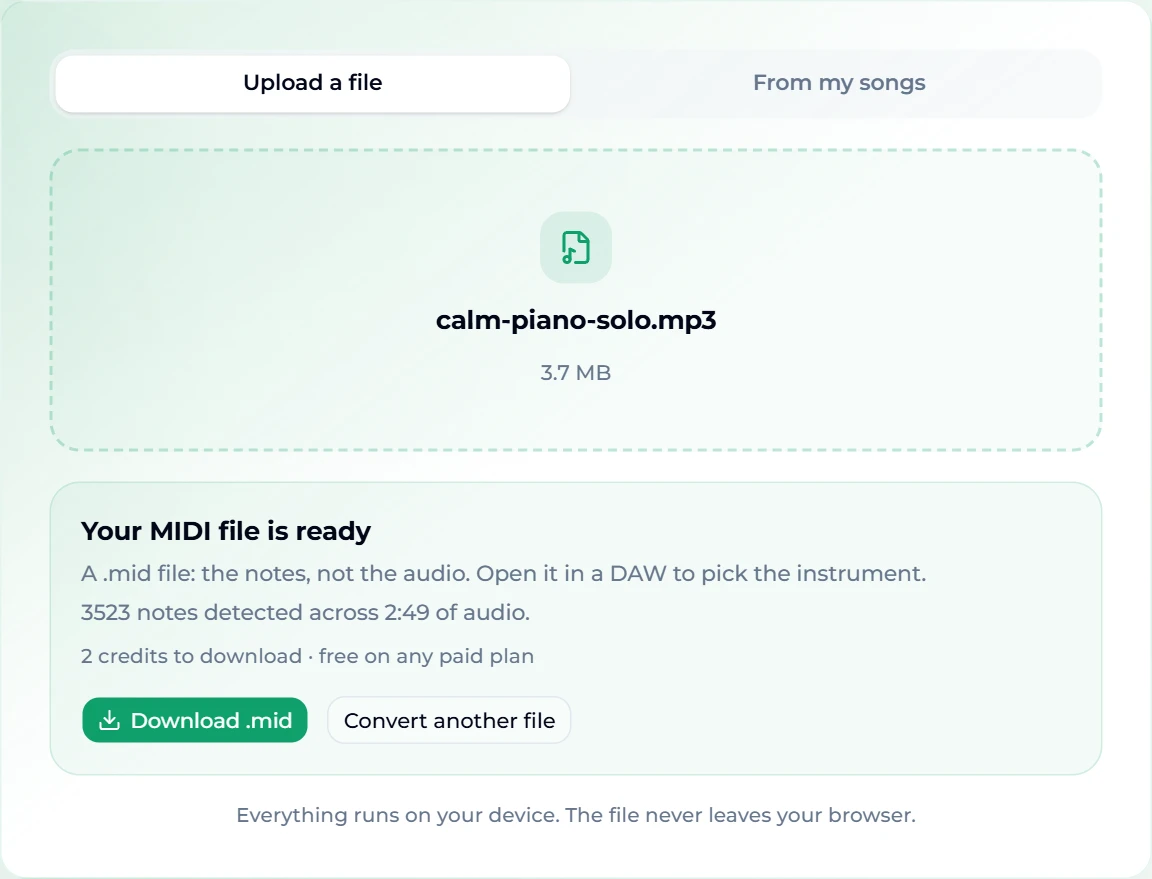
- Download the .mid. Press Download .mid. Converting is free for everyone; downloading costs 2 credits for non-members and nothing on any paid plan. If you are signed out, the button opens the sign-in window first — new accounts start with 16 free credits, which covers several MIDI downloads. Once you have paid for a conversion, you can download that file again from the same page without paying twice.
The note count is your quick quality check. If a three-minute song comes back with 40 notes, the model heard very little it trusted — usually because the melody was buried. If a sparse ballad comes back with 12,000, it is probably transcribing reverb and drums. In both cases, the fix is a cleaner input, not a second attempt on the same file.
Which recordings convert well
Transcription quality depends far more on the recording than on the converter. Roughly, from best to worst:
- Solo instruments — piano, guitar, a single sung or whistled melody, a flute line. These come back close to what was played.
- Isolated stems — the vocal or the bass pulled out of a full song. If you only have the full mix, run it through the vocal remover first and convert the part you actually want. Converting a separated vocal gives you the melody; converting the instrumental gives you the harmony.
- Sparse arrangements — a singer with an acoustic guitar. Usable, with some cleanup.
- Dense full mixes — drums, bass, pads, vocals and effects all at once. You will get a note cloud: every instrument's pitches merged into one track, plus drum hits read as short random notes. Still useful for sketching chords, not for a clean score.
- Speech, sound effects, noise — nothing to find. The converter will say "No notes were found in this audio" rather than invent a melody.
A practical rule: if you can hum the part you want while the track plays, and nothing else in the mix is as loud, the conversion will find it.
Cleaning up the MIDI in a DAW
Open the .mid in any DAW — GarageBand, Logic, Ableton Live, FL Studio, Reaper, Cubase, or a free one like LMMS — and assign an instrument. Then work through the usual passes:
- Delete the ghost notes. Sort or filter by velocity and remove the very quiet notes. Most stray detections are faint — reverb tails and sympathetic overtones.
- Fix octave errors. Transcription models sometimes land a note an octave above or below where it was played, especially on low bass notes. They stand out visually in the piano roll.
- Quantize gently. The MIDI keeps the timing of the real performance. Quantizing to 1/16 at 50–70% strength tightens it without making it robotic. Skip this entirely for rubato piano.
- Split parts. The file arrives as one track. If you want melody and chords separately, select the notes above a pitch (say, above middle C) and move them to their own track.
- Set the tempo. A transcription does not know the song's BPM, so the DAW's bar lines will not line up with the music. Find the tempo first — our guide on how to find the BPM of a song takes a minute — and set the project to it before quantizing.
If you plan to write the part out as sheet music, it is also worth knowing the key before you start, so the notation software spells sharps and flats correctly; finding the key of a song walks through that.
Going the other way with MIDI to MP3
Sometimes you need the reverse: a .mid file that you want to hear, share or drop into a video. The MIDI to MP3 converter renders it to audio, again entirely in your browser.
- Press Choose a MIDI file and pick a .mid or .midi file. The page confirms the name and the number of notes.
- Pick a Sound: Piano, Organ, Strings or Chiptune.
- Press Render audio. A 77-note, 22-second chord progression rendered in well under a second in our test.
- Press Play to preview, then Download MP3 or Download WAV. Both are free.
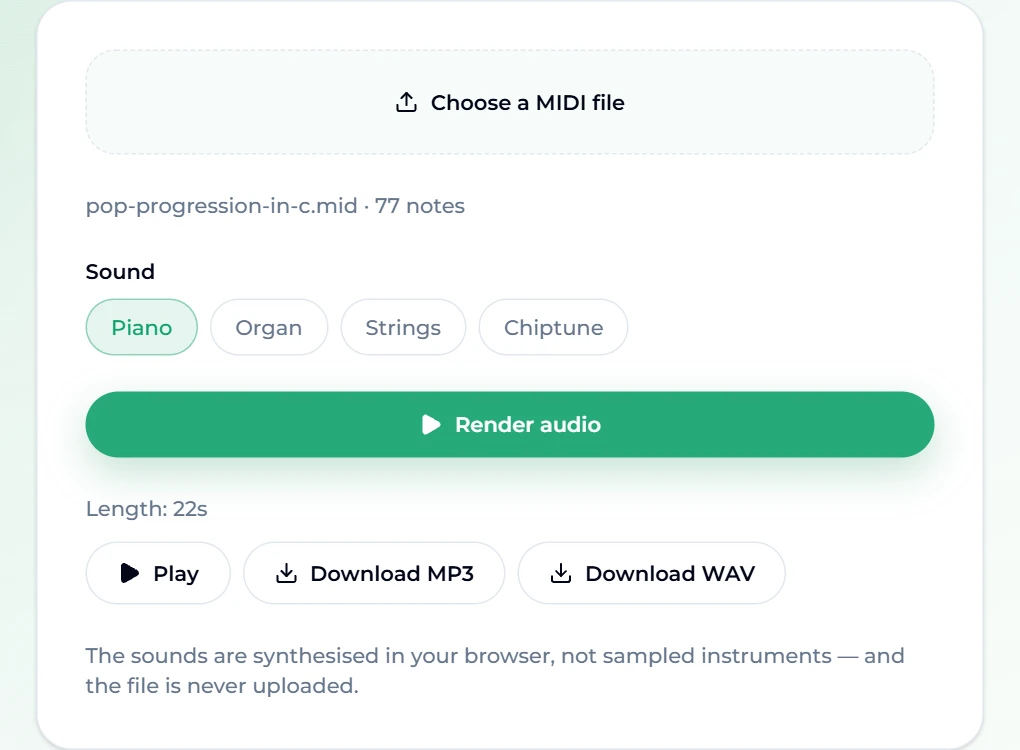
Be clear about what this is: the four sounds are synthesised, not sampled instruments, so "Piano" is a soft plucked tone rather than a concert grand. It is ideal for checking a transcription by ear, sharing a sketch with a bandmate, or a lo-fi chiptune feel. For a realistic instrument, load the MIDI into a DAW with a sampled piano or strings library. The converter accepts files up to 10 minutes and 20,000 notes.
FAQ
Is the MP3 to MIDI converter free?
Converting is free and needs no account — you can see the note count and length of the result before deciding anything. Downloading the .mid costs 2 credits for non-members and is free on every paid plan. New accounts get 16 credits on sign-up.
Is my audio uploaded anywhere?
No. The file is decoded and transcribed on your own device by a model that runs in the browser; the page makes no server request with your audio. The only exception is the From my songs tab, which fetches a track from your own library on our site.
Can it separate instruments into different MIDI tracks?
No — the result is a single track containing every pitch it heard. To get separate parts, separate the audio first (the vocal remover splits vocals from the instrumental), convert each part, then combine the MIDI files in your DAW.
Does it detect drums?
It is built for pitched notes. Drums are not transcribed as a drum kit; loud hits may appear as short, random pitched notes, which is another reason stems convert better than full mixes.
Why does the conversion take a minute or more?
The neural network runs on your computer rather than a server, and it examines the whole track in small overlapping frames. A 3-minute song is several thousand of those frames. Laptops with a decent graphics chip finish faster, because the browser uses it to accelerate the model.
Can I convert a video's soundtrack to MIDI?
Yes, on the MP4 to MIDI page, which also accepts MOV, WEBM and MKV. If a video's audio track uses a codec your browser cannot decode, export the audio as MP3 or M4A first and use that instead.
Can I turn a song I generated into MIDI?
Yes. Sign in, switch the converter to From my songs and pick the track. A very fresh generation can take a few minutes to become available for conversion; if it is not ready, try again shortly.
Final take
MP3 to MIDI is transcription, and transcription rewards clean input: give the model one instrument or one stem and you get back a file you can edit, reharmonise and print. Give it a full mix and you get a sketch. Start with the MP3 to MIDI converter, check the note count, clean up the obvious ghosts in your DAW — and when you want to hear a MIDI file without opening a DAW at all, render it back with MIDI to MP3. If you would rather start from a finished song than a transcription, generate one and convert the part you like.