
TL;DR
Every MP3 carries a small block of text and pictures at the front of the file — the ID3 tag — and that block, not the filename, is what your phone, car stereo, Apple Music, VLC or Plex shows you. If a track appears as "take-1" by "Unknown Artist" with no artwork, the tag is empty or wrong. To fix it, open the file in the free MP3 tag editor, type the title, artist, album, year, genre and track number, drop in a cover image, and press Save MP3. The editor rewrites only the tag block and copies the audio through untouched, so nothing is re-encoded and nothing is lost. It runs entirely in your browser: the file never leaves your device, there is no account, and it costs nothing.
In this guide
- What MP3 tags are
- Why tags go missing
- Step by step
- What each field is for
- Cover art that actually shows up
- Troubleshooting
- Habits for a clean library
- FAQ
- Final take
What MP3 tags are
An MP3 file is two things glued together: the compressed audio, and a metadata block that describes it. That block is called ID3 (short for "identify an MP3"), and the version almost everything reads today is ID3v2 — a set of named frames at the start of the file. TIT2 holds the title, TPE1 the artist, TALB the album, TYER the year, TCON the genre, TRCK the track number, and APIC holds an attached picture: the cover art.
Players read those frames and ignore the filename. That is why two copies of the same song can look completely different in your library: one has a tag, one does not. It is also why renaming a file from take-1.mp3 to Quiet Hours.mp3 changes nothing on your phone — the player is still reading an empty title frame and falling back to whatever it can find.
The good news is that the tag is independent of the sound. You can rewrite it as many times as you like without touching a single audio frame, which means without any loss in quality.
Why tags go missing
Most untagged MP3s come from one of four places:
- Downloads from tools and generators. Songs exported from AI music tools, stem splitters, screen recorders or converters often arrive with no tag at all, or with a technical placeholder. Our own test file for this guide — a piano piece generated on Suno AI Music — opened with every field blank.
- Audio converted from another format. Going from WAV (which rarely carries useful tags) to MP3 produces a file with nothing in it unless the converter asks you.
- Recordings you made yourself. Voice memos, rehearsal takes and podcast drafts start life untagged.
- Rips and old collections. CD rips from the 2000s were often tagged with whatever a free database returned, which was sometimes the wrong album or "Track 07".
Whatever the source, the fix is the same: open the file, fill in the frames, save a copy.
Step by step
Here is the whole process on a real file: a two-minute piano solo exported as take-1.mp3, with no tags and no artwork.
- Open the editor. Go to the MP3 tag editor. There is nothing to install and no sign-in.
- Choose your MP3. Click the dashed box and pick the file. The editor reads the existing ID3 tag in the browser and fills the form with whatever it finds. Blank fields mean the frame is missing.
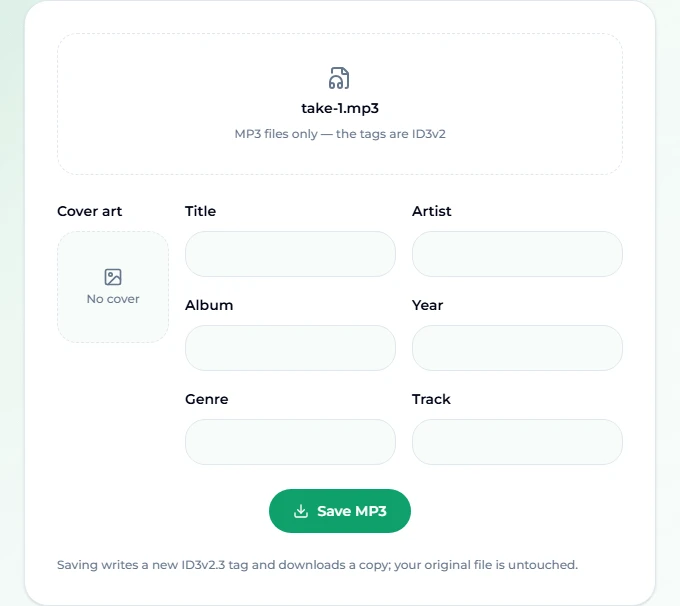
- Fill in the text fields. For our file: Title "Quiet Hours (Piano Solo)", Artist "Mara Ellis", Album "Late Light", Year "2026", Genre "Classical", Track "3".
- Add the cover. Click the cover box and choose a JPEG or PNG. It previews immediately.
- Press Save MP3. The editor writes a fresh ID3v2.3 tag, attaches the picture, and downloads a copy of the file. The message beside the button reads "Saved — check your downloads". Your original file is untouched.
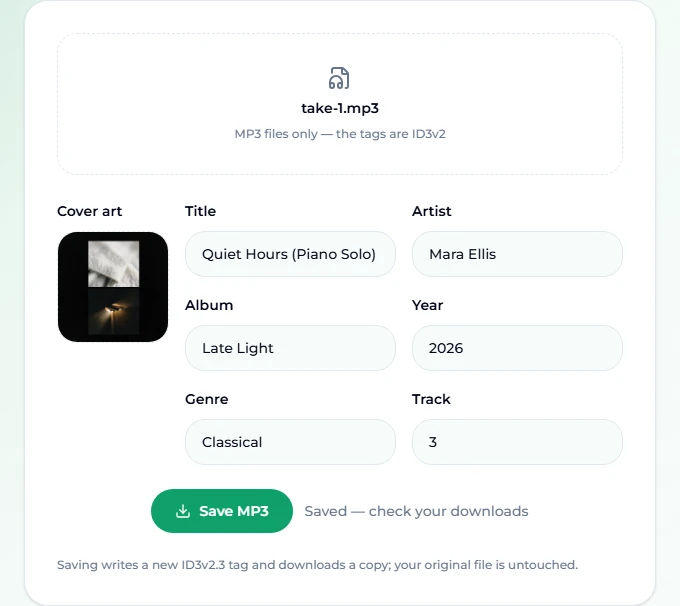
- Check the result. Open the downloaded copy in the editor again, or drop it into your music player. When we reopened ours, every field came back exactly as typed and the artwork was attached — proof that the tag was written to the file, not just shown on the page.
The downloaded copy keeps the original filename. Your browser may add " (1)" if a file with that name is already in your Downloads folder; rename it or replace the original once you are happy.
What each field is for
The six text fields map to the frames every mainstream player reads. A few notes on filling them in well:
- Title. The song name as you want it displayed. Put version details in brackets — "(Acoustic)", "(Piano Solo)", "(2026 Remaster)" — so different takes of the same song are distinguishable in a list.
- Artist. The performer. For several artists, separate them with a comma or "feat." consistently; players group by the exact string, so "Mara Ellis" and "Mara Ellis " (trailing space) become two artists.
- Album. Players build album views from this field, so every track on the same record needs the identical spelling. Singles are usually tagged with the song title as the album.
- Year. Four digits. The editor writes it to the
TYERframe, which older car stereos and players still expect. - Genre. Free text. Keep a short list you reuse — "Lo-fi", "Classical", "Hip-Hop" — rather than inventing a new label per file, or your genre view fills with near-duplicates.
- Track. The position on the album, as a number. It is what keeps an album playing in order instead of alphabetically.
Empty fields are simply not written, so you can fix just the title and leave the rest alone.
Cover art that actually shows up
Artwork is the field people care about most and the one that fails most often. Three rules cover nearly every case:
- Use a square image. Players crop to a square; a wide banner loses its sides.
- Keep it modest in size. 600 to 1,000 pixels on a side is plenty. A 4,000-pixel photo embedded in every track of an album bloats each file by megabytes and some older devices refuse to display very large embedded pictures.
- JPEG or PNG only. Those are the two formats the editor accepts, and the two every player understands.
The editor saves the picture as the "front cover" type, which is the one phones and car screens look for. If your player still shows the old artwork after saving, it is almost always a cache on the player's side — see the next section.
Troubleshooting
"That file could not be read as an MP3." The editor only reads MP3 files. If your file ends in .m4a, .flac, .wav or .ogg, it keeps its metadata in a different way, and this editor does not handle it yet. Convert to MP3 first if you need ID3 tags, or use a desktop tagger that supports that format.
My phone still shows the old title. Phones and streaming apps cache metadata. Delete the old copy from the device, copy the new one over, and give the media scanner a minute; on some Android devices a restart forces a rescan.
The album is split into several albums. Check that the album field is spelled identically on every track, and that the artist field is consistent. A single stray character creates a separate album in most players.
Tracks play in the wrong order. Fill in the Track field. Without it, players fall back to title or filename order.
The download did not appear. Look for a download prompt or a blocked-download icon in the address bar. Some browsers ask before saving a file from a page.
Habits for a clean library
Tagging is dull, so the trick is to do it once, at the moment a file enters your library:
- Tag on arrival. Every time you export a song — a generated track from the AI music generator, a stem from the vocal remover, a bounce from your DAW — open it in the tag editor before it goes into your music folder.
- Name the file and tag it the same way.
Mara Ellis - Quiet Hours.mp3plus a matching tag makes the file findable in both a file browser and a player. - Keep a versions convention. Brackets in the title for alternates, and the same album name for everything that belongs together.
- Check the tempo and key while you are at it. If you DJ or make playlists by energy, it helps to know a track's BPM; the song BPM finder and key and BPM finder read those from the file in the same private, in-browser way.
If you are building a set of AI-generated songs to publish or share, tidy tags are also the first thing a listener notices. Our guide on uploading AI music to Spotify covers what distributors ask for beyond the tag.
FAQ
Does editing tags change the sound of the MP3?
No. Only the ID3 block at the front of the file is replaced. The audio frames are copied through byte for byte, so there is no re-encoding and no quality loss, no matter how many times you save.
Is my file uploaded anywhere?
No. The tag editor reads and writes the file in your browser. Nothing is sent to a server, which also means it works on large collections without waiting for uploads.
Can I edit tags on FLAC, M4A or WAV files?
Not in this editor. Those formats store metadata differently from MP3, and the editor reads and writes ID3v2, the MP3 standard. It will tell you if a file cannot be read as an MP3.
Which ID3 version does it write?
ID3v2.3, the most widely compatible version. Almost every phone, car stereo, desktop player and media server reads it correctly.
Does it cost anything or need an account?
No. It is free, with no sign-up and no limit on how many files you tag.
Can I remove a field completely?
Clear the field and save. Empty fields are not written to the new tag, so the saved copy will not carry that frame.
Why does the saved file have the same name as the original?
The editor keeps your filename so the copy can replace the original cleanly. Your browser decides what happens if a file of that name already exists in Downloads — usually it appends a number.
Final take
A song with a real title, the right artist and a cover image feels finished; the same audio as "take-1 — Unknown Artist" feels like a draft. The fix takes under a minute per file: open it in the MP3 tag editor, fill the six fields, add a square cover, save. The audio is never touched and the file never leaves your device. Make it the last step every time you export a track, and your library stays clean without ever needing a big tidy-up weekend.