

TL;DR
If music is playing behind a voice — a speaker in a café, a song under a phone video, a track left running during a podcast take — you do not need the original session to get the voice back. Upload the file to the background music remover (the same engine powers the voice cleaner and the vocal remover), and AI separation returns two tracks: the voice on its own, and the music on its own. It takes an MP3, WAV, M4A or the audio inside an MP4, up to 10 MB; a separation costs 10 credits and usually finishes in one to three minutes. Then load the voice into the free audio equalizer, apply the Podcast or Vocal preset, and export an MP3 or WAV. One honest limit: separation removes music. It is not a noise reducer for hiss, wind or traffic.
In this guide
- What separation can and cannot do
- Before you start
- Step 1 Separate the voice from the music
- Step 2 Polish the voice with an equalizer
- Which preset for which recording
- Troubleshooting
- Real situations this fixes
- FAQ
- Final take
What separation can and cannot do
Older "voice isolation" tricks worked by phase cancellation: they subtracted the left channel from the right and hoped the voice was in the middle. That destroyed the voice as often as it removed the music. Modern separation is different. A neural network trained on thousands of isolated vocals and instrumentals listens to the whole mix and rebuilds two new files — one with only the voice, one with everything else. Because it models what a voice sounds like rather than where it sits in the stereo field, it works on mono phone recordings too.
What it is good at:
- Music under speech. A song in the background of a vlog, a café speaker under a voice memo, a DJ set bleeding into an interview.
- Singing over a backing track. A rehearsal video where you want the singer alone.
- Keeping both halves. You get the music as its own track as well, which is handy if you want to swap it for something you have the rights to.
What it is not:
- A noise reducer. Hiss, hum, wind, traffic and room echo are not music, and the model does not try to remove them. The voice cleaner page says so plainly for that reason.
- Magic on a buried voice. If the music is much louder than the speaker, the separated voice will be usable but thinner. The louder the voice was in the original, the cleaner the result.
Before you start
- Format and size. MP3, WAV, M4A, or an MP4 video (the audio is taken from it), up to 10 MB. A 10 MB MP3 at 128 kbps is roughly ten minutes; if your file is bigger, trim the part you need first.
- An account and credits. Separation runs on our servers, so it needs you signed in. Each run costs 10 credits; new accounts start with 16 free credits, which covers one separation. More credits come with any plan or credit pack.
- Your file is not kept. The uploaded file is used for that one separation and deleted when the job finishes.
- Rights. Separating a recording does not change who owns it. Stems from your own recordings are yours; stems pulled from someone else's commercial song are for private use.
Step 1 Separate the voice from the music
- Open the background music remover. It opens on Upload a file; the other tab, From my library, is for songs you generated on the site.
- Click the dashed box and choose your recording. The file name appears in the box.
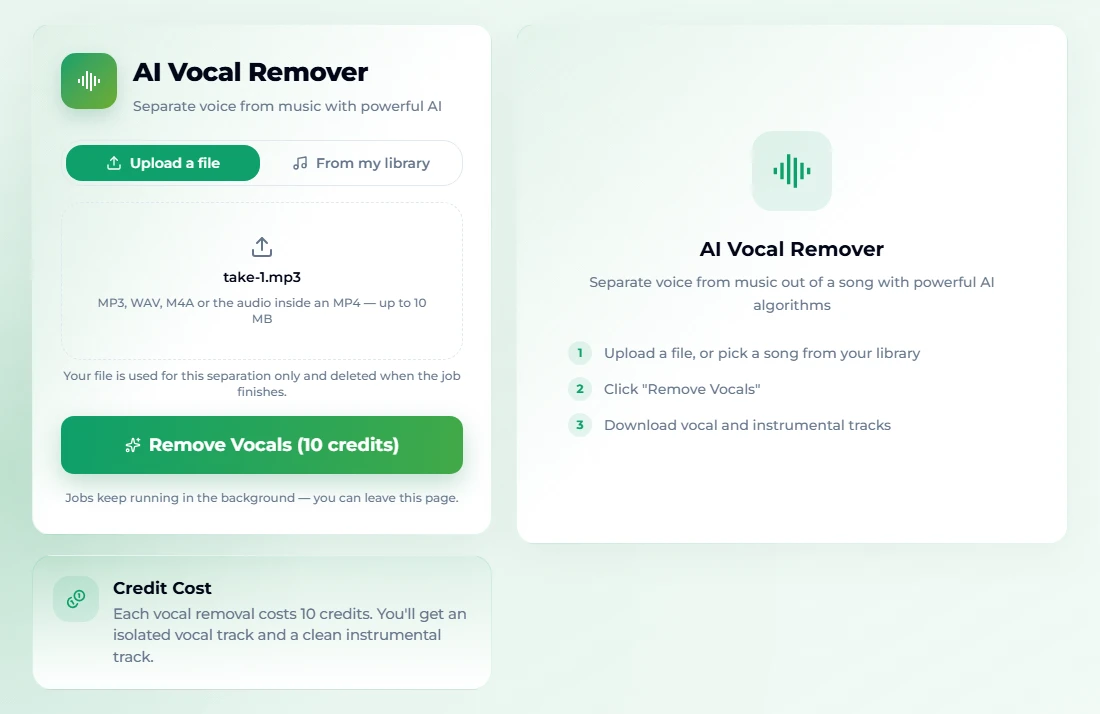
- Press Remove Vocals (10 credits). If you are not signed in, a sign-in window opens first; nothing is charged until the job actually starts.
- The job runs in the background — usually one to three minutes depending on length — and you can leave the page. It appears in the task list on the right.
- When it finishes you have two files: the isolated voice (the acapella) and the music without the voice (the instrumental). Play both, then download the voice.
The button says "Remove Vocals" because the same tool is also used the other way round — to take the singer out of a song for karaoke. For a voice recording, the file you want is the vocal one. If a separation fails, the credits are refunded automatically.
Step 2 Polish the voice with an equalizer
A separated voice is often slightly dull or boomy: the model has removed the music but kept every low-frequency rumble the microphone picked up. Two minutes with an equalizer fixes most of that.
- Open the audio equalizer and click Choose an audio file to load the separated voice.
- Pick a preset. For speech, start with Podcast: it cuts the lowest bands hard (−8 dB at 31 Hz, −6 at 62 Hz), leaves the middle alone, and lifts the presence range around 1–2 kHz by 3 dB, which is where consonants and clarity live.
- Press Play and listen while you nudge individual sliders. Each of the ten bands — 31, 62, 125, 250, 500 Hz and 1, 2, 4, 8, 16 kHz — moves ±12 dB, and you hear the change as you drag.
- Export with Download MP3 or Download WAV. The export runs through the same filter chain as the preview, so the file sounds exactly like what you heard.
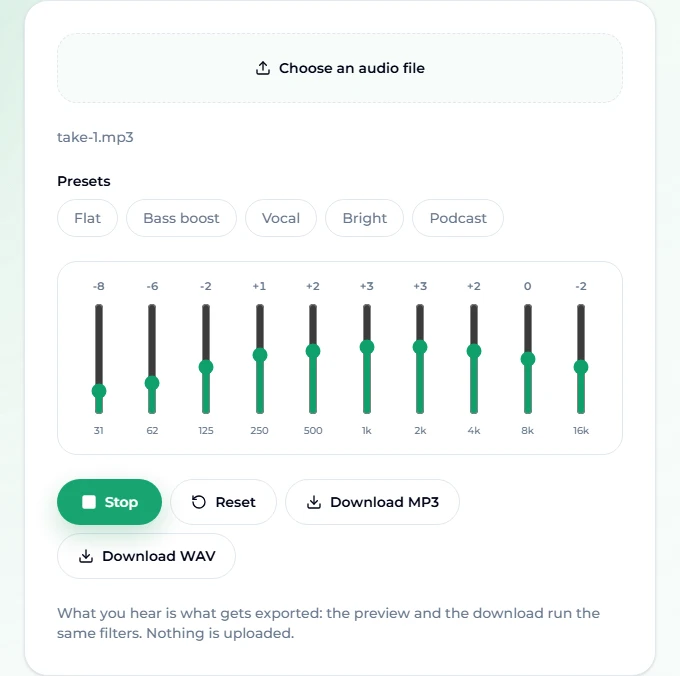
When we exported our test file as WAV it came back as a full-length, 41 MB file named with an -eq suffix, ready for an editor. The equalizer never uploads anything — the file is processed in your browser — and it is free with no account.
Which preset for which recording
The five presets are starting points, not verdicts:
| Recording | Start with | Then try |
|---|---|---|
| Spoken voice note, interview, podcast | Podcast | Pull 16 kHz down further if there is hiss |
| Singing, rap, voice-over with music later | Vocal | Add +1 or +2 at 4 kHz for more air |
| Voice that sounds muffled or far away | Bright | Cut 250 Hz by 2–3 dB to remove boxiness |
| Thin phone recording | Flat, then +2 at 125–250 Hz | Keep 31–62 Hz cut to avoid rumble |
| Anything you have over-processed | Reset | Start again from Flat |
One rule helps more than any preset: cut before you boost. Boosting every band is just turning the whole file up until it clips. Removing what is in the way — rumble at the bottom, boxiness around 250–500 Hz — usually does more for clarity than adding treble.
Troubleshooting
"That file is over 10 MB." Trim the part you need, or export it at a lower bitrate. A 96 kbps MP3 is fine for speech and fits about 14 minutes in 10 MB.
The voice has watery, swirly artefacts. That happens where music and voice were competing at the same frequencies and similar volume. Try separating a copy that starts and ends on the speech only, so the model hears less music overall. A gentle cut around 4–8 kHz in the equalizer also softens the artefacts.
The music is gone but there is still hiss or traffic. Separation removes music, not noise. Use the equalizer to roll off the extremes (low cut for rumble, a small cut at 8–16 kHz for hiss), and for serious noise use a dedicated noise-reduction tool.
The equalizer says the file could not be decoded. Use MP3, WAV or M4A. Some unusual codecs inside video files are not decodable by the browser; convert to MP3 first.
The export failed. Very long files can exhaust browser memory. Split the recording into shorter parts and export each.
Real situations this fixes
- The café voice memo. You recorded an idea for a song on your phone and the café speaker was playing a pop song. Separate it, keep the voice, and use it as a guide vocal.
- The speech video. A wedding toast filmed while the band played. The separated voice, run through the Podcast preset, is clear enough for a highlight reel.
- The podcast take with music bleed. Someone left a playlist running during an interview. Separation rescues the take without re-recording.
- Swapping copyrighted music out of a vlog. Separate, keep the voice, and lay a track you own underneath — for example, one you generate yourself on the AI music generator. Our guide to AI music for YouTube covers what platforms flag.
- Singing over a karaoke track. Keep the voice for a cover, or keep the instrumental for practice. If karaoke is the goal, the karaoke version guide walks through that direction.
FAQ
Is removing background music from a voice recording free?
The equalizer step is free, with no account. The separation step uses AI on our servers and costs 10 credits a run; new accounts get 16 free credits, enough for one separation.
What files can I upload?
MP3, WAV, M4A, or an MP4 video (the audio track is used), up to 10 MB per file.
Do I get the music back as well?
Yes. Every separation returns two files: the isolated voice and the music without the voice. Both can be played and downloaded from the task list.
Will it remove wind, hiss or traffic noise?
No. Separation is built to split voice from music. It does not target noise, and the voice cleaner page says so. An equalizer can soften hiss and rumble; heavy noise needs a noise-reduction tool.
How long does it take?
Most recordings finish in one to three minutes, depending on length. The job runs in the background, so you can leave the page and come back.
Is my recording stored?
The uploaded file is used for that separation only and deleted when the job finishes. The equalizer never uploads anything at all.
Can I use the cleaned voice commercially?
If it is your own recording, yes. Separating a recording does not change ownership, so stems from someone else's commercial song remain for private use.
Final take
A good voice recording ruined by background music is one of the most fixable problems in audio. Separate it with the background music remover to get the voice and the music as two files, then spend two minutes in the audio equalizer with the Podcast or Vocal preset and export. Keep the expectations honest — it lifts out music, not wind or hiss — and most café memos, filmed speeches and interrupted podcast takes come back usable.