
TL;DR
Background music has one job: set a mood without taking attention away from the voice, product or room in front of it. That means a steady tempo, soft instruments, few surprises, and nothing in the frequency range where speech lives. On the AI background music generator you describe the project and the mood, and the AI writes an original instrumental bed for it. Instrumental Only is on from the start, the preset is an upbeat acoustic vlog track at 118 BPM, and six "Start from a vibe" tiles each play a bed made on v6 from exactly the prompt they load. One run is 10 credits for two tracks in about a minute.
In this guide
- What makes good background music
- Step by step with the background music generator
- Writing a background music prompt
- Six proven background music prompts
- Common background music mistakes
- Choosing a model
- Fitting the track to your project
- FAQ
- Final take
What makes good background music
Good background music is designed to be half-heard. Each of these qualities can be asked for in the prompt:
- No vocals. A singer competes with a speaker. Keep Instrumental Only on, which it already is on this page.
- A steady tempo that matches the pace of the edit. Around 70 BPM suits documentaries and emotional narration, 85–90 suits podcasts and cafés, and 110–120 suits vlogs, explainers and product demos. Write the number.
- Instruments that leave the voice alone. Speech sits mostly in the midrange. Plucked guitar, soft piano, electric piano, pads, brushed drums and upright bass stay around it. Loud lead synths, distorted guitars and busy horn lines sit on top of it.
- Even energy. Big drops, key changes and sudden stops pull attention. Words like steady, subtle, unobtrusive and gentle swells keep the track level. A promo is the exception, where an inspiring build can help the edit.
- A mood you can name in one word. Positive, cozy, hopeful, happy and bright, warm and relaxed. That word decides the chords.
- The use in the prompt. For presentations and explainer videos, for coffee shops and restaurants, sits under narration. All six presets end by saying what the music is for, and it steers the arrangement.
- Loopable, if it needs to run long. The podcast preset asks for loopable, which suits beds that run under a full episode.
Step by step with the background music generator
- Open the AI background music generator. It is the full studio, with the Prompt tab selected, Instrumental Only switched on (red) and v6 Mini in the model picker on the free tier.
- Read the preset. It is upbeat acoustic background music, 118 BPM, ukulele and acoustic guitar, whistled melody, light percussion, happy and bright, for vlogs and travel videos. It gives tempo, two instruments, a lead, percussion, mood and use, in that order.
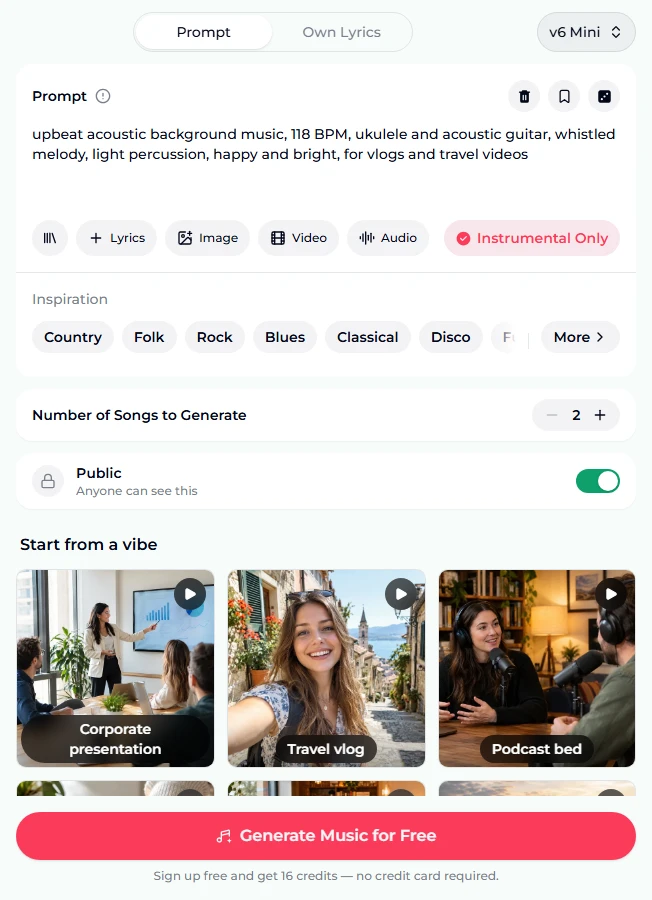
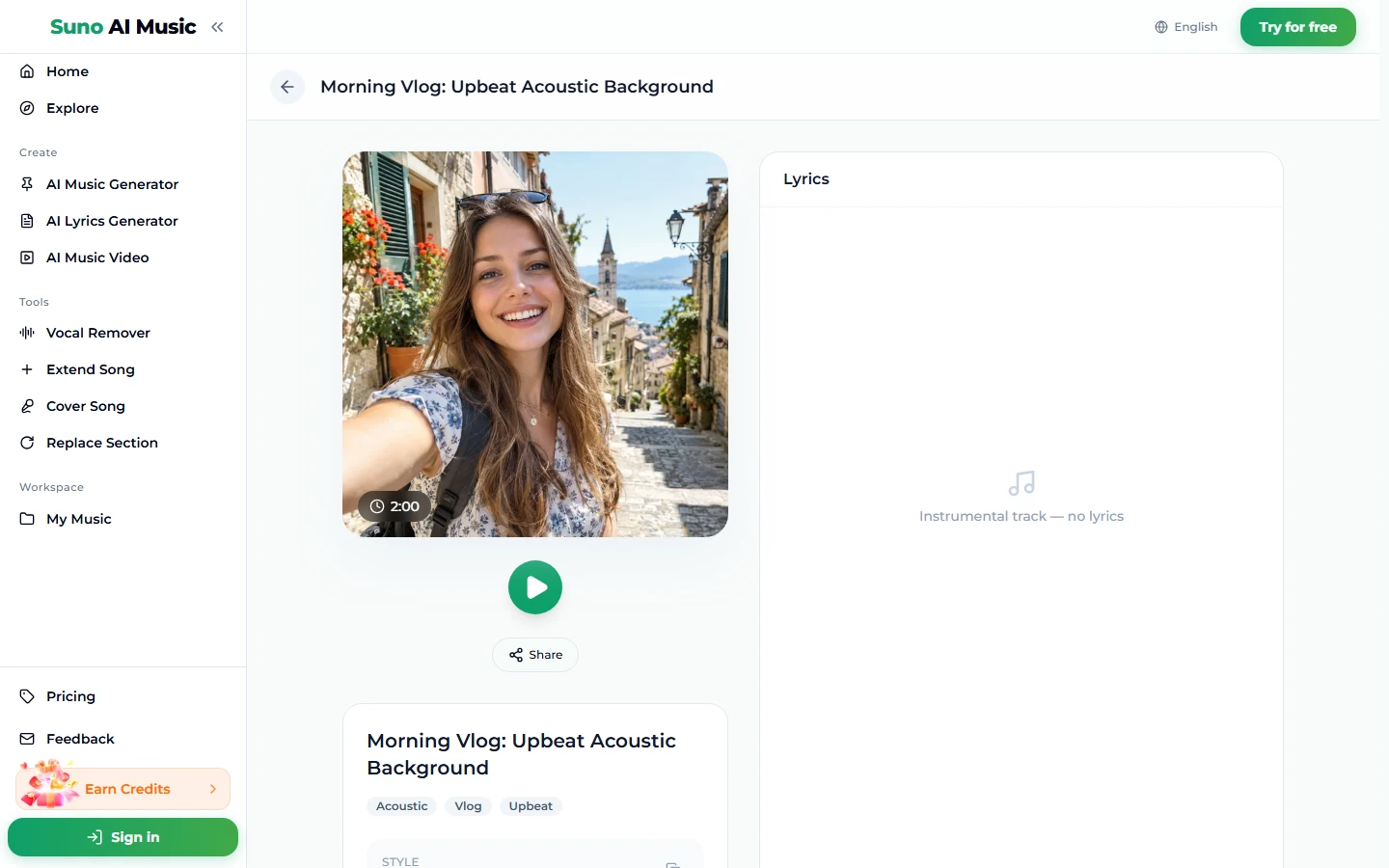
- Tap a vibe. One tap plays the example and copies its prompt into the box. Travel vlog is the same prompt as the preset. Tapping it plays Morning Vlog, the example on that tile, made on v6 from exactly this prompt. It runs 2:00.
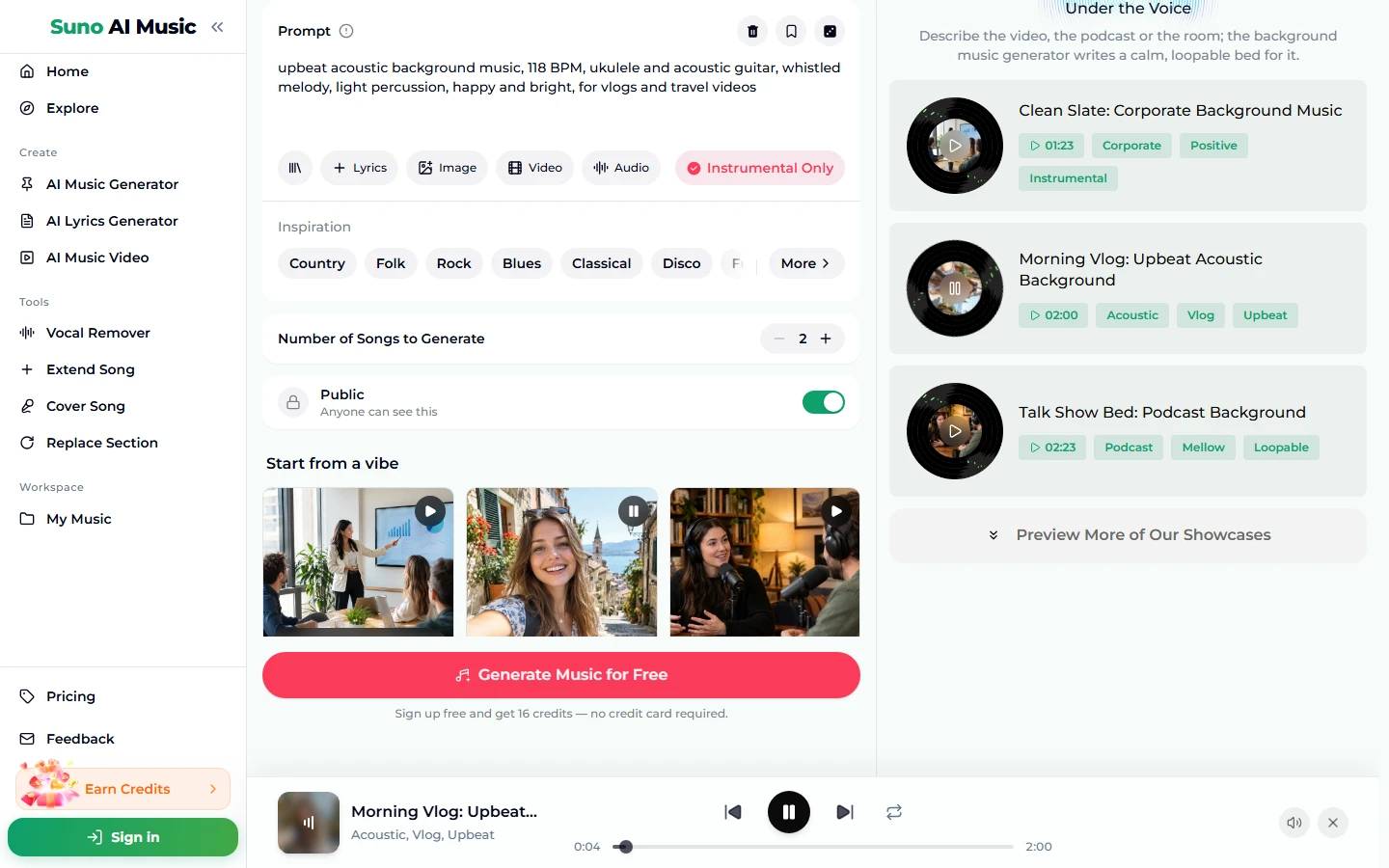
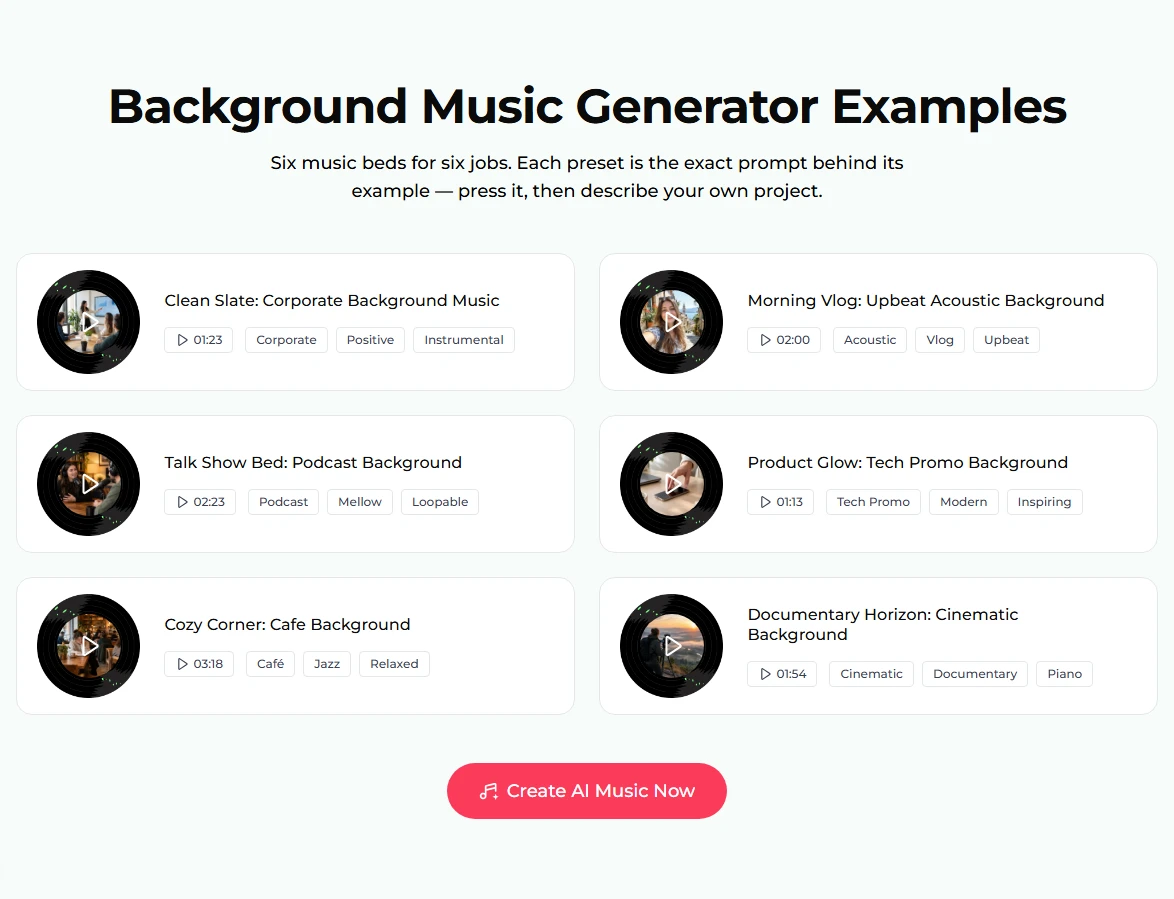
- Listen to the six jobs. The examples section lists all six beds: corporate, vlog, podcast, tech promo, café and documentary. Play them under your own footage or voice if you can. Background music is best judged in the background.
- Open the song page. Each example has a page, such as Morning Vlog, with the cover, play button, Share, tags and the note "Instrumental track — no lyrics".
- Describe your own project. Keep the structure of the closest preset and change the use, the mood or the tempo.
- Press Generate Music for Free. If you are logged out, sign up first; new accounts get 16 free credits with no card. One run is 10 credits for two tracks in about a minute. The stepper counts songs, so 2 equals one run, and raising it to 4 or 6 gives you more options in one go. You get new tracks in that style, not copies of the example.
Writing a background music prompt
All six presets follow the order style → BPM → two or three instruments → texture → mood → use. It fits in the 500-character Prompt box with plenty to spare.
- Name the use. for product launches and app demos or sits under narration. It's the most useful phrase in a background prompt.
- Pick soft, midrange-friendly instruments when a voice will be on top: clean plucked guitar, soft piano, warm mellow electric piano, upright bass, brushed drums, airy pads.
- Say what the track should not do. Unobtrusive, subtle and steady so voices sit on top, no lead melody.
- Match the tempo to the cut. Fast cuts want 110–120 BPM, slow reflective pieces 70–85. Suno follows tempo roughly, which is plenty for a bed.
- Try a reference. The Video chip takes one clip up to about 4 minutes, and the Image chip up to 5 photos; the music picks up their mood. That is useful when words don't describe your footage well. It costs the same 10 credits.
For a longer vocabulary of style words, see the Suno prompts guide.
Six proven background music prompts
These are the six vibes on the AI background music generator. Each prompt is verbatim, and each one made the example on its tile on v6.
| Vibe | What it is | Prompt |
|---|---|---|
| Corporate presentation | Clean, positive bed for slides and explainers (1:23) | light corporate background music, 110 BPM, clean plucked guitar, soft piano, gentle claps, positive and unobtrusive, for presentations and explainer videos |
| Travel vlog | Upbeat acoustic with whistling (2:00) | upbeat acoustic background music, 118 BPM, ukulele and acoustic guitar, whistled melody, light percussion, happy and bright, for vlogs and travel videos |
| Podcast bed | Mellow loop that sits under talk (2:23) | podcast background music, 90 BPM, warm mellow electric piano, soft bass, brushed drums, subtle and steady so voices sit on top, loopable |
| Product promo | Sleek modern tech bed with a build (1:13) | modern tech promo background music, 120 BPM, sleek synth pulses, airy pads, crisp minimal beat, inspiring build, for product launches and app demos |
| Café jazz | Soft jazz guitar for spaces (3:18) | cozy cafe background music, 85 BPM, soft jazz guitar, upright bass, gentle brushes, warm and relaxed, for coffee shops and restaurants |
| Documentary | Piano and strings under narration (1:54) | cinematic documentary background music, 70 BPM, soft piano motif, warm strings, gentle swells, thoughtful and hopeful, sits under narration |
Two of our own, untested:
- calm lo-fi background music, 80 BPM, mellow Rhodes, soft vinyl crackle, gentle drums, unobtrusive, for study streams and tutorials (untested)
- gentle cooking show background music, 100 BPM, pizzicato strings, marimba, light acoustic guitar, playful and warm, sits under voice-over (untested)
Common background music mistakes
- A strong melody. A hook you notice is a hook that pulls attention from the speaker. If you catch yourself humming the bed, it is too loud in the arrangement. Ask for subtle or no lead melody.
- The wrong tempo for the edit. A 120 BPM bed under a slow interview feels anxious, and a 70 BPM bed under quick cuts feels sluggish.
- Vocals by accident. If you switch Instrumental Only off, you may get a singer. For background use, leave it on.
- Mixing too loud. Even a perfect bed covers speech if it sits at the same level. In your editor, set the music well under the voice. Around 15–20 dB below speech is a common starting point.
- One track for an hour. Listeners notice repetition. Generate two or three beds in the same style and alternate them, or extend one.
- Judging from one take. Two tracks come back per run. Try both under the actual footage.
Choosing a model
The picker is at the top right of the form:
- v6 Mini is the free tier, described as "Fast drafts, high volume". Background beds are forgiving, so it is a good place to find the right mood.
- v6 is described as "Most powerful, for any song". The six examples were made on it. Use it for the track that goes in the final edit.
- v6 Wild is described as "Best for experimental ideas". It is less suited to background music, which usually wants predictable.
v6 and v6 Wild need a paid plan; see pricing. The price is the same on all three: 10 credits for two tracks.
Fitting the track to your project
- Make it longer. Extend Song continues a track from any point, so a two-minute bed can cover a twenty-minute video or a café playlist.
- Fix one bar. Replace Section regenerates part of a track, for example to remove a flourish that lands on a key sentence.
- Remove a voice from a track you already have. The vocal remover splits a song into vocals and instrumental.
- Pick the right tool for the job. The jingle maker is built for short brand stings and intros, the lofi generator for study streams, the piano music maker for solo piano, and the AI instrumental generator for pieces where the music is the focus rather than the background.
- Download for your editor. Downloads come with a plan; see pricing.
For platform-specific advice, see AI music for YouTube and AI music for podcasts.
FAQ
Can I make background music for free?
Yes. New accounts get 16 free credits with no card, and one run costs 10 credits for two tracks on v6 Mini.
Can I use the background music commercially, on YouTube or on Spotify?
Commercial use is included only on the Standard plan and above, 2,500+ credit packs, and Team plans. Tracks made with free credits, the Starter plan or Mini credit packs are for personal use only. Monetised videos, ads and client work are commercial use.
Is the music original?
Yes. Every track is newly generated, not taken from a stock library, so no other video is using the same recording.
How long is a background track?
The six examples run from 1:13 to 3:18. Extend any track to the length you need.
How do I stop the music from covering the voice?
Ask for soft instruments, a lower tempo and sits under narration or unobtrusive, then keep the music well under the voice in your editor.
Can I play it in my café or shop?
Playing music to customers in a business counts as commercial use, so it needs a plan that includes it (Standard and above, 2,500+ credit packs or Team).
Can I keep the tracks private?
Yes, on a paid plan: turn Public off before you generate.
Final take
Learning how to make background music mostly means learning restraint. Set a steady tempo that matches the edit, use two soft instruments, name one mood and say what the track is for, then stop. Open the AI background music generator, tap the vibe closest to your project, play the example under your footage, and change one word at a time until the music supports the voice instead of competing with it.