

TL;DR
You do not need an instrument, software or a musical background to make a complete song with vocals. You need one sentence that describes the record — genre, mood, a couple of instruments, the kind of voice — and ten minutes. On Suno AI Music a new account comes with 16 free credits, one generation costs 10 and returns two complete songs, and everything lands in your library where you can play, share, and hand it to the editing tools. This tutorial does the first run with you, then explains how the same steps map onto Suno's own app if you use both.
In this guide
- Before you start
- Step 1: Sign up and find the create page
- Step 2: Describe the song
- Step 3: Pick a model and a mode
- Step 4: Generate and listen to both takes
- Step 5: Keep, share, or fix
- How this maps to the Suno app
- FAQ
Before you start
Have an answer to one question: what should this song be for? Not a genre — a use. A 30-second bed for a video, an intro for a podcast, a birthday song for a friend, a demo of a lyric you wrote. The use tells you the length, whether it needs words, and how polished the first result has to be. Beginners who skip this generate something generic and then cannot say why it is wrong.
Then have a sentence ready. The simplest working shape is:
A [mood] [genre] song about [subject], with [one or two instruments] and [a voice].
For example: "A bittersweet indie folk song about leaving a small town, with fingerpicked guitar and a soft female vocal." That is a complete brief.
Step 1: Sign up and find the create page
Register with an email or Google. A new account is credited with 16 credits, no card required — enough for one generation (10) plus a few lyric drafts (1 each). Registration is the only gate; there is nothing to install.
The workbench is at /create. It is one screen: the form on the left, your songs on the right. The left side is where the rest of this tutorial happens.
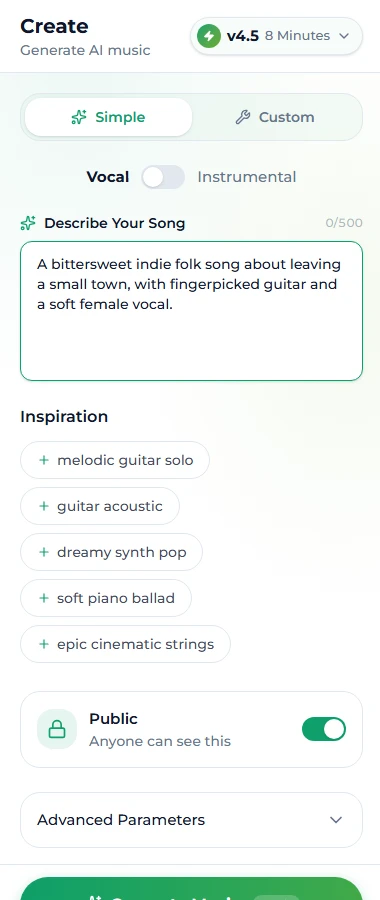
Step 2: Describe the song
Leave the mode on Simple for your first run. There is one text field, up to 500 characters. Type the sentence you prepared — style and subject together. The model will write lyrics to match and choose the arrangement.
Three habits from the first run onward:
- Name a sound, not a feeling. "Amazing" and "beautiful" give the model nothing; "fingerpicked guitar" and "soft female vocal" give it a mix.
- One genre, one mood. Two of each is a coin toss.
- No artist names. They are unreliable as descriptions and the one thing that can complicate a licence later. Describe what the artist sounds like instead.
If you want an instrumental — no singing — flip the Instrumental switch. The model then ignores any words in your description that read like lyrics.
Below the field sits a row of Inspiration chips — melodic guitar solo, dreamy synth pop, soft piano ballad and so on. Clicking one drops a ready-made phrase into the description. They are training wheels: use one to see the shape of a working prompt, then replace it with your own words. A description you wrote yourself is the only kind you can improve on the second run.
Step 3: Pick a model and a mode
Above the form is the model menu. On a free account it is Suno v6 Mini, and that is the right choice for a first song: it is the free member of Suno's newest family, built for speed. v6 and v6 Wild — the rest of that family — carry a PRO badge and are included with the paid plans; they cost the same 10 credits per run, so the price is not the reason to wait — the plan is.
Leave the mode on Simple for now. Custom mode is where you get separate fields for Style, Lyrics and Title, plus Negative Tags and Vocal Gender — it is the mode for your second song, once you know what you want to control. The prompts guide and the tags guide cover it.
Step 4: Generate and listen to both takes
Click Generate Music. The button shows the cost — 10 credits — and the job starts; it runs in the background, so you can stay or leave. A couple of minutes later two songs appear in the panel on the right, both from your one description, each a complete take with its own arrangement and performance.
Listen to both all the way through. This is the step beginners rush. The two takes are not "a good one and a spare": they are two different answers to the same brief, and the second is often the better one.
Then sort your reaction into one of three:
- One take is what you meant. Keep it — go to step 5.
- Close, but not quite. Change one thing in the description — the mood word, the instrument, the voice — and generate again. A second run that changes one variable teaches you exactly what that variable does.
- Both are wrong. The description had a contradiction, or it described a story rather than a sound. Rewrite it in the shape from the top of this guide before spending more credits.
Step 5: Keep, share, or fix
Everything you generate is saved to My Music. From there:
- Play and favourite — the heart marks the takes worth returning to.
- Share — every song has a public page you can link; the link preview carries the cover art.
- Download — high-quality downloads and the commercial licence come with the paid plans. Free-tier songs are for making and listening.
- Fix, rather than regenerate. If the song is good but too short, extend it; if the song is right but the production is wrong, cover it in another style; if one section is weak, replace just that section; if you need the instrumental or the vocal on its own, separate them. Each of those costs the same 10 credits as a generation and works on any song in your library.
That is the whole first run. The complete beginner's guide goes through the same five steps in more depth once you have done them once.
How this maps to the Suno app
Suno's own product works on the same principle with a different frame around it, and many people use both. What is the same: a description-driven generator with a Simple/Custom split, a Style field and a Lyrics field with bracketed section tags, an Instrumental switch, two clips per generation, and a library the editing tools read from. The structure tags and prompt habits above transfer one to one.
What differs, so you are not surprised:
- Free allowance. Suno's Free plan lists 50 credits renewed daily — about 10 songs a day — on v6 Mini since its September 9, 2026 model launch, for personal use only; commercial rights and the full v6 and v6 Wild come with its Pro and Premier plans. Suno AI Music gives a one-time 16 credits on signup on v6 Mini, and its paid plans add the PRO models (v6 and v6 Wild), MP3 downloads, WAV export and the commercial licence.
- Exclusions. What this site calls Negative Tags lives under Advanced Options as Exclude Styles in the app.
- Extending. In the app, an extension is a separate clip that you stitch with Get Whole Song; here the extended result is already the full track.
- Uploads. The app accepts uploaded audio as a source for some tools. Here only the vocal remover takes an upload (up to 10 MB); extend, cover and replace section work on songs made in your library, which is what keeps those results cleanly licensed.
FAQ
How much does the first song cost?
Nothing. Signup gives 16 credits; a generation is 10 and returns two songs.
How long does it take?
Usually a couple of minutes for both takes. The job runs in the background — leave the page and collect the songs in My Music.
Can I write my own lyrics?
Yes — switch to Custom mode and paste them into the Lyrics field, with [Verse] and [Chorus] tags on their own lines. The AI lyrics generator can draft them for 1 credit if you would rather start from a brief.
Which model should a beginner use?
Suno v6 Mini. It is the free model and the fast member of Suno's v6 family. Move to v6 or v6 Wild when you have a paid plan and want the newer sound; the credit cost is the same.
Can I use the song commercially?
On the paid plans, yes — with a downloadable licence certificate. Free-tier songs are for personal use.
Why did I get two songs?
Every generation is a draw from the model, so the generator gives you two answers to the same prompt and lets you keep the better one. It is the cheapest way to get a good take.
What if I run out of credits?
Free credits are a one-time gift; the plans are priced by monthly credits. Choose by how many songs a month you actually finish.
Final take
One sentence in the shape mood, genre, subject, instruments, voice; Simple mode; v6 Mini; generate; listen to both; change one thing. Ten minutes from account to a song with vocals, and the first one is on the house.
Start now: open the create page.